Instagram Carousel Splitter Guide: From Free Tools to Pro Publishing
Carousels are a powerful way to tell a story on Instagram, but creating them often starts with a single high‑resolution image that needs to be broken into individual slides. This guide walks you through the entire splitting process, from picking the…


1. Choosing the Right Splitting Tool
Instagram Carousel Splitter Guide: Free Online Tools Worth Trying

A free online splitter lets you upload a single carousel image and instantly divides it into individual slides. Most tools preserve original resolution, add optional numbering, and let you download a zip file ready for Instagram. Because they run in the browser, there’s no software install and you can work from any device. Look for features like batch processing and built‑in watermark options to keep your brand safe while you experiment with different carousel lengths.
Instagram Carousel Splitter Guide: Desktop Software for Power Users
Desktop applications such as PhotoSplit Pro give you granular control over slice dimensions, output formats, and naming conventions. They usually support drag‑and‑drop batches, letting you process dozens of carousels in minutes. Advanced features include color‑profile preservation and the ability to export directly to cloud storage. While you need to purchase a license, the time saved on repetitive tasks and the higher quality output often justify the cost for agencies and frequent creators.
Instagram Carousel Splitter Guide: Mobile Apps That Save Time
On‑the‑go creators can rely on mobile apps like Carousel Cutter, which split images directly on your phone. These apps integrate with your photo library, let you preview each slide, and share the final zip via messaging or cloud links. Some include quick edit tools—crop, filter, and text overlay—so you can polish before posting. Although they lack the batch power of desktop tools, their convenience makes them ideal for spontaneous content and last‑minute campaigns.
2. Preparing Your Images Before Splitting
Instagram Carousel Splitter Guide: Optimizing Image Size & Ratio
Instagram requires each carousel slide to be 1080 × 1080 px for square posts or 1080 × 1350 px for portrait. Start by resizing your master file to the exact dimensions of the final carousel width multiplied by the number of slides. This prevents unwanted stretching when the splitter cuts the image. Use a lossless format like PNG for crisp text, then convert to JPEG for upload to keep file size under 10 MB per slide.
Instagram Carousel Splitter Guide: Maintaining Brand Colors Across Slides
Consistent color palettes reinforce brand identity, especially when a carousel spans multiple slides. Before splitting, verify that your design uses CMYK‑compatible hex codes and that gradients flow smoothly across the intended cut lines. Tools like Adobe Illustrator let you place vertical guides at each slide width, ensuring that color transitions line up perfectly after the split. This pre‑emptive check reduces the need for post‑split corrections and keeps your feed visually cohesive.
Instagram Carousel Splitter Guide: Adding Text Layers with DesignLumo

DesignLumo’s AI generator can create layered designs where each carousel panel contains its own text block. Start by describing the message you want for each slide, and the tool will output editable layers you can fine‑tune. Once satisfied, export a single wide canvas, then run it through your chosen splitter. This workflow saves hours of manual text placement and ensures typographic consistency across the entire carousel.
3. Publishing Split Carousels Efficiently
Instagram Carousel Splitter Guide: Scheduling Posts with Buffer
After splitting, upload each slide to a scheduling platform like Buffer. The tool lets you arrange the slides in order, add captions, and set a publish time. By queuing the carousel in advance, you free up time for community engagement and analytics. Buffer also provides a preview of how the carousel will appear on mobile, helping you catch any misaligned slides before they go live.
Instagram Carousel Splitter Guide: Using LinkedIn Carousel Maker for Cross‑Platform Repurposing

Turn your Instagram carousel into a LinkedIn carousel to extend its reach. DesignLumo’s LinkedIn Carousel Maker accepts the same split image files and automatically adjusts dimensions to the LinkedIn format. This saves you from recreating the content from scratch and ensures branding stays consistent across platforms. Once generated, download the LinkedIn‑ready PDF and upload it directly to your LinkedIn feed for maximum exposure.
Instagram Carousel Splitter Guide: Tracking Performance & ROI
Measure the success of your carousel by monitoring swipe‑through rates, likes, comments, and saves per slide. Instagram Insights provides slide‑level data, allowing you to see which panels drive the most engagement. Combine this with UTM parameters in your captions to attribute traffic to specific slides. Analyzing these metrics helps you refine future carousel designs, optimize content placement, and demonstrate ROI to stakeholders.
Before you go
- Always preview the split image at 100 % zoom to catch any off‑center elements before publishing.
- Use consistent naming conventions (e.g., carousel‑01‑slide‑01.jpg) to keep files organized during batch processing.
- Leverage DesignLumo’s AI to generate alternate copy for each slide, then A/B test different versions for higher engagement.
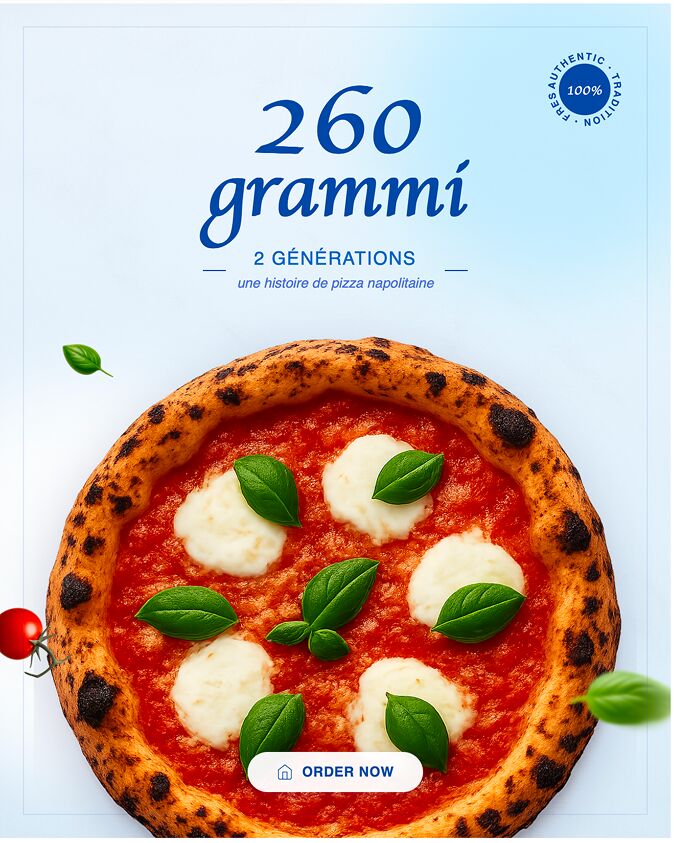

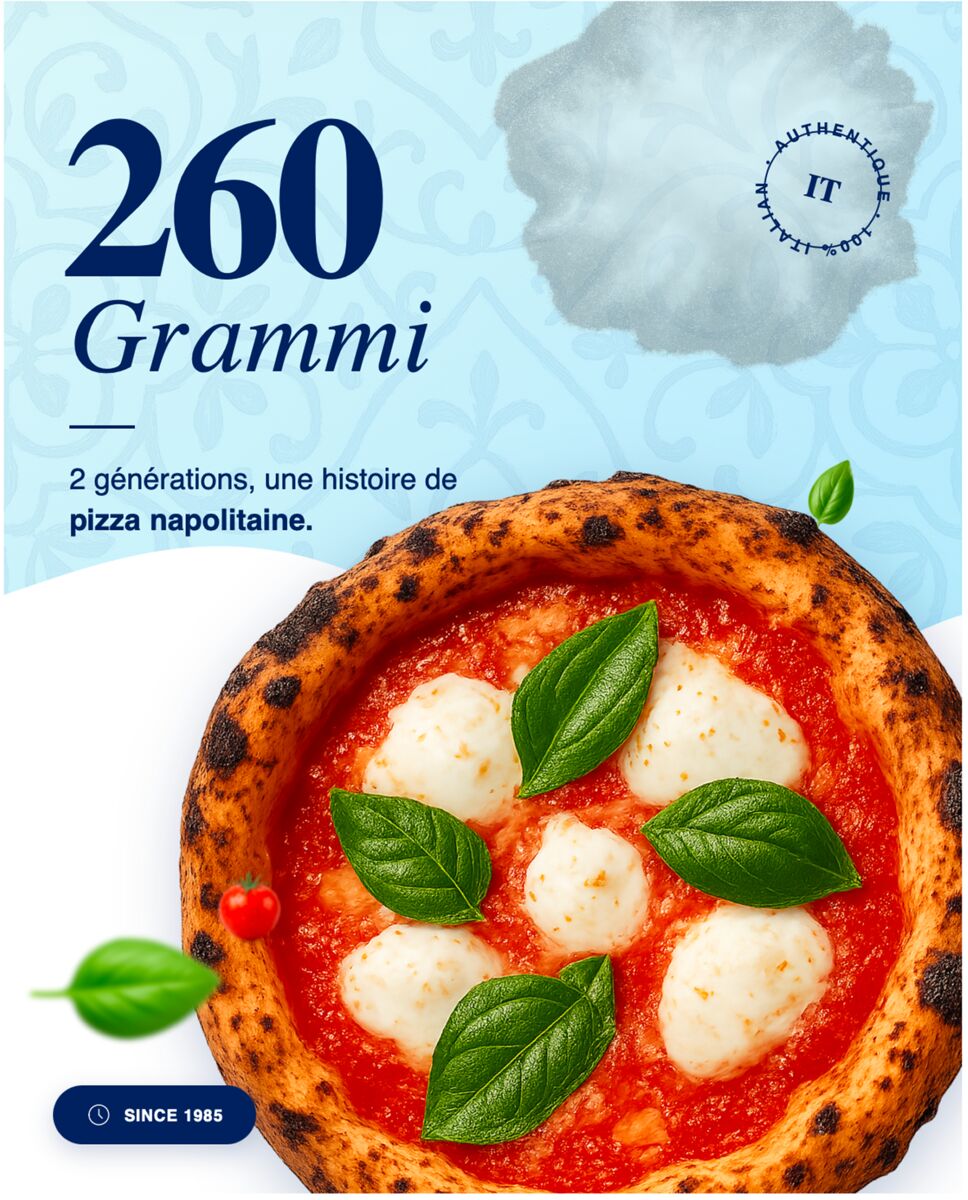
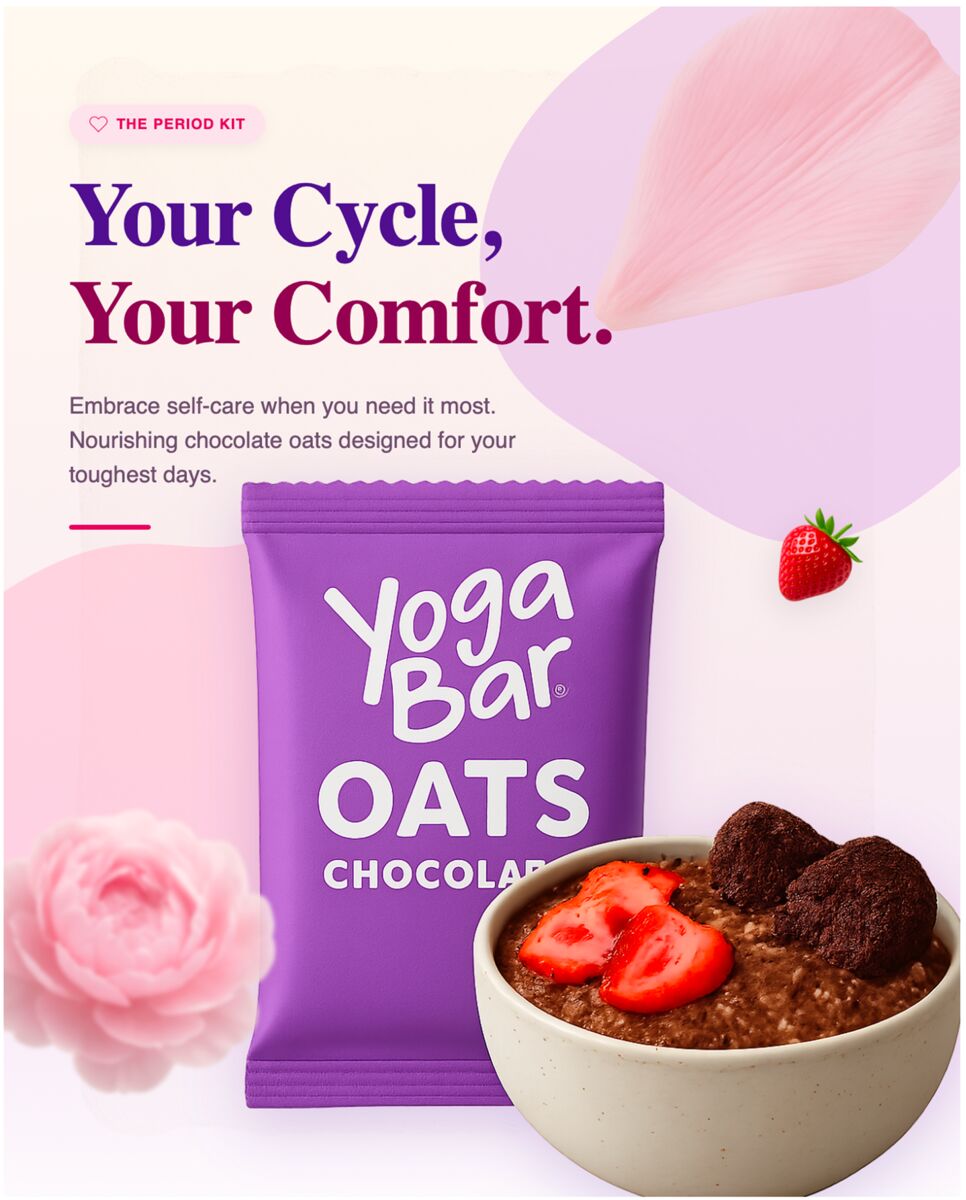










Ready to create your first design?
Join thousands creating professional designs in seconds.
Create with DesignLumo
Related Resources
The Ultimate Instagram Carousel Mockup Guide: From Concept to Click‑Ready Slides
Step‑by‑step Instagram carousel mockup guide: plan your story, design layered slides with DesignLumo, and export ready‑to‑post files for maximum impact.
Can You Add a Photo to an Instagram Carousel After Posting? (2026 Reality)
Instagram's March 2026 update lets you reorder and delete carousel slides — but you still cannot add new photos after posting. Here's what you can do instead.
The Ultimate Instagram Carousel Size Guide for 2024: Boost Engagement
Learn the exact dimensions, aspect ratios, and export settings for Instagram carousel posts. Get actionable tips to design eye‑catching carousels that look perfect on every device.
How to Make an Instagram Carousel: A Complete Step‑by‑Step Guide
Learn how to make an Instagram carousel that captures attention, drives engagement, and boosts brand visibility with practical planning, design, and publishing tips.
How Many Photos in an Instagram Carousel? (Quick Answer + What Actually Works)
Instagram carousels allow up to 20 slides. But the real question is how many you should use. Here's what actually drives engagement.
Instagram Carousel Best Practices (2025–2026)
Practical Instagram carousel best practices for 2025 and 2026, covering content strategy, do's and don'ts, and the best tools to boost engagement and reach.