The Ultimate Instagram Carousel Mockup Guide: From Concept to Click‑Ready Slides
Instagram carousel posts are powerful storytelling tools, but their visual impact starts long before you hit publish. A well‑crafted mockup lets you visualize flow, test branding, and avoid costly revisions. This guide walks you through every stage,…


1. Setting the Foundation
Craft a Narrative Blueprint – Instagram Carousel Mockup Guide
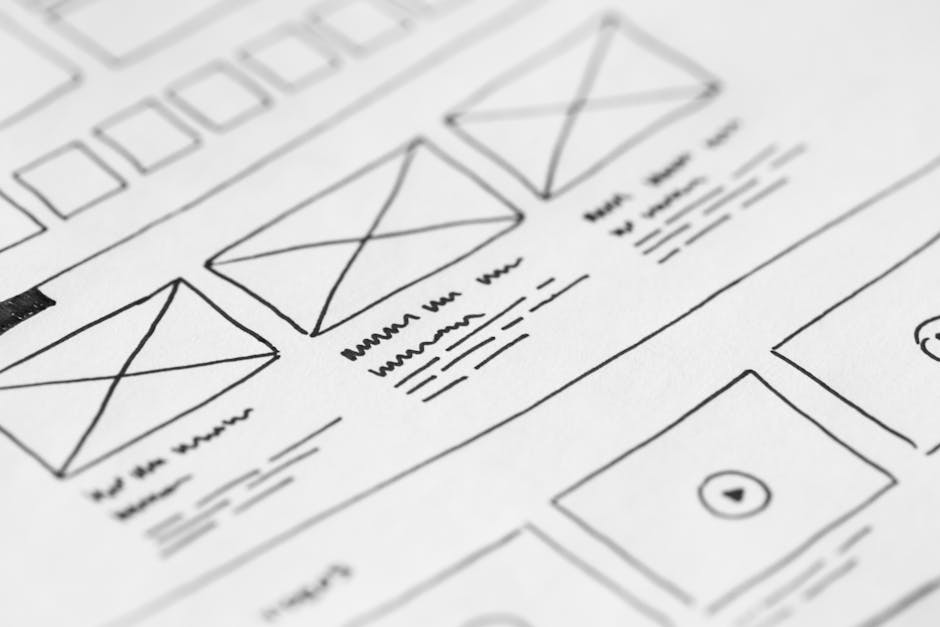
Start by outlining the story you want each slide to tell. Write a brief headline for every frame, note key visuals, and decide on the call‑to‑action placement. This narrative map prevents gaps and ensures a logical flow, which is essential for retaining viewers as they swipe. Keep the copy concise, align it with brand voice, and review the sequence with teammates before moving to design.
Choose the Right Dimensions – Instagram Carousel Mockup Guide

Instagram carousel posts use a fixed 1080 × 1080 px canvas for each slide, but the overall layout can affect visual hierarchy. Verify that your design respects safe zones, avoids edge‑clipping, and scales well on both phones and tablets. Setting up a grid in your design tool helps maintain consistency across slides, and using the correct dimensions from the start eliminates re‑exporting later.
Gather Brand Assets Early – Instagram Carousel Mockup Guide
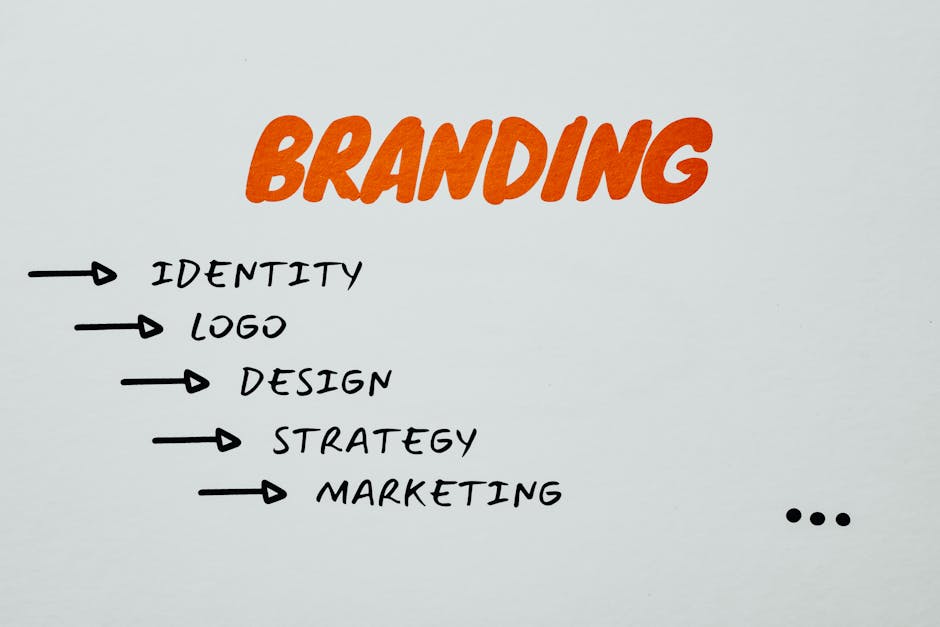
Collect logos, color palettes, typography files, and any illustration packs before you open your design app. Store them in a project folder labeled with version dates to avoid confusion. Having these assets on hand speeds up layer creation and ensures that every slide adheres to brand guidelines, which is crucial for maintaining a professional appearance across multiple posts.
2. Designing the Layers
Build Editable Frames with DesignLumo – Instagram Carousel Mockup Guide
Leverage DesignLumo’s AI generator to produce editable, layered mockups from simple text prompts. Input your slide concepts, choose a style, and let the tool output PSD files with separate layers for images, text, and backgrounds. This accelerates the iteration process, letting you swap visuals or tweak copy without rebuilding from scratch. The result is a flexible file that stays organized for future updates.
Apply Consistent Typography – Instagram Carousel Mockup Guide

Select two complementary typefaces—one for headings and another for body copy—to keep the carousel visually unified. Use hierarchy by varying weight and size: bold caps for slide titles, regular weight for supporting text. Align text to a baseline grid to avoid jittery movement between slides. Consistency in typography not only reinforces brand identity but also improves readability on small screens.
Integrate Visual Hierarchy – Instagram Carousel Mockup Guide
Guide the viewer’s eye by positioning focal points strategically—large images at the top, accent colors for buttons, and ample whitespace around key messages. Use contrast to differentiate primary actions from secondary information. Layer masks and subtle drop shadows can add depth without overwhelming the design. A clear hierarchy ensures that each swipe reveals new, compelling content, keeping audiences engaged through the entire carousel.
3. Polishing and Publishing
Test Interactivity on Mobile – Instagram Carousel Mockup Guide
Before exporting, preview your mockup on an actual smartphone or using a device emulator. Swipe through each slide to confirm that text remains legible, images stay centered, and interactive elements like swipe cues appear correctly. Spotting issues early—such as truncated copy or misaligned graphics—prevents costly re‑uploads and preserves the professional look of your carousel when it goes live.
Export in Optimal Formats – Instagram Carousel Mockup Guide
Export each slide as a high‑quality JPEG or PNG, using sRGB color space and a compression setting that balances file size with visual fidelity (typically 80‑90%). Name files sequentially (e.g., slide01.jpg) to keep order intact when uploading. If you plan to repurpose the carousel for ads, also save a layered PSD copy for quick edits. Proper export ensures crisp images on Instagram’s feed without unnecessary loading delays.
Schedule and Track Performance – Instagram Carousel Mockup Guide

Use a social‑media scheduler to post at peak audience times, then monitor carousel metrics such as swipe‑through rate, saves, and click‑throughs. Compare performance against previous carousel experiments to identify which design choices drive engagement. Adjust future mockups based on data—perhaps tweaking color emphasis or call‑to‑action placement—to continuously improve ROI on your visual content strategy.
Before you go
- Create a master template file in DesignLumo so you can reuse layout grids across multiple carousel projects.
- Limit each slide to one core message; overcrowding reduces swipe‑through rates and confuses viewers.
- Add subtle animation cues (like a tiny arrow) on the last slide to encourage users to explore the next post in the series.















Ready to create your first design?
Join thousands creating professional designs in seconds.
Create with DesignLumo
Related Resources
Instagram Carousel Splitter Guide: From Free Tools to Pro Publishing
Learn how to split Instagram carousel posts quickly with free tools, desktop software, and mobile apps. Follow our step‑by‑step guide and boost engagement.
Can You Add a Photo to an Instagram Carousel After Posting? (2026 Reality)
Instagram's March 2026 update lets you reorder and delete carousel slides — but you still cannot add new photos after posting. Here's what you can do instead.
The Ultimate Instagram Carousel Size Guide for 2024: Boost Engagement
Learn the exact dimensions, aspect ratios, and export settings for Instagram carousel posts. Get actionable tips to design eye‑catching carousels that look perfect on every device.
How to Make an Instagram Carousel: A Complete Step‑by‑Step Guide
Learn how to make an Instagram carousel that captures attention, drives engagement, and boosts brand visibility with practical planning, design, and publishing tips.
How Many Photos in an Instagram Carousel? (Quick Answer + What Actually Works)
Instagram carousels allow up to 20 slides. But the real question is how many you should use. Here's what actually drives engagement.
Instagram Carousel Best Practices (2025–2026)
Practical Instagram carousel best practices for 2025 and 2026, covering content strategy, do's and don'ts, and the best tools to boost engagement and reach.