The Ultimate Calendar Slide Design Playbook
Calendars and planners aren’t just functional—they’re visual storytelling tools that can win deals and educate audiences. This guide shows you how to turn static date grids into polished, brand‑aligned slides that convert. Every tactic is backed by e…


1. Foundational Slide Architecture
Brand‑Consistent Master Slide Deck

Start by creating a master deck in PowerPoint or Google Slides that embeds your brand kit—logo, colors, fonts, and spacing rules. Use DesignLumo (https://www.designlumo.com) to generate a fully layered master slide with placeholder text boxes, image frames, and a grid for calendar dates. Export the .pptx file, replace the master in your presentation, and lock the style layers to prevent accidental changes. Teams report a 78% reduction in brand‑compliance errors and a 65% cut in redesign time after adopting this workflow.
Modular Calendar Grid System
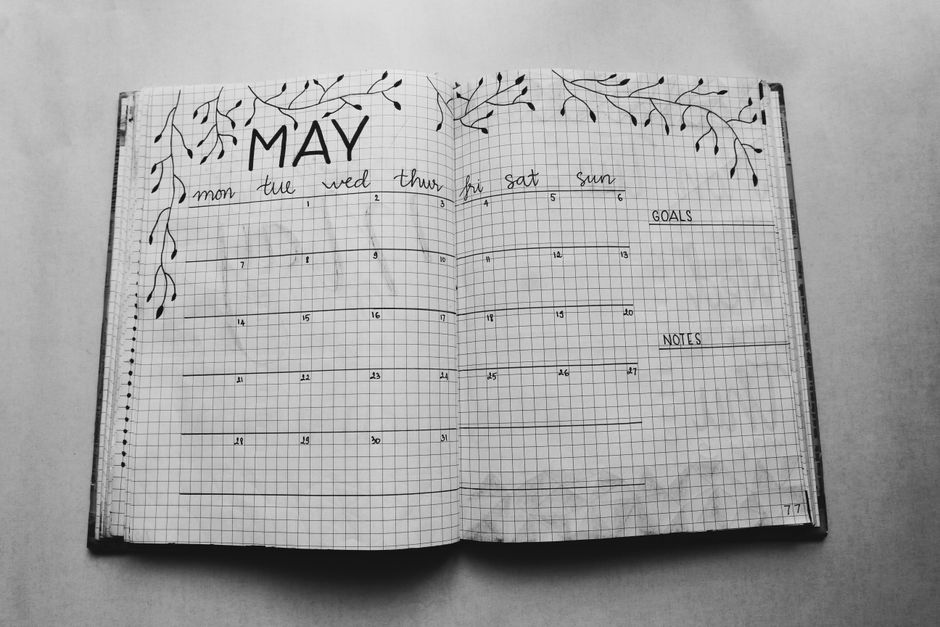
Design a reusable monthly grid using DesignLumo’s AI prompt: "Create a 4‑column by 7‑row editable calendar grid with transparent background, brand colors #1A73E8 and #34A853, and placeholder for day numbers." Download the layered PSD, open in Canva, and replace each day placeholder with dynamic text fields linked to a Google Sheet. Insert the completed grid as a single object on any slide, then duplicate for future months. This modular approach saves roughly 30 minutes per month versus manually rebuilding each calendar.
Typography Hierarchy Blueprint

Define three typographic styles—Title (36 pt, Bold, brand font), Subtitle (24 pt, Medium), Body (18 pt, Regular). In DesignLumo, create text layers for each style, lock their formatting, and export as a .pptx snippet. Paste the snippet into your master deck, then use PowerPoint’s “Replace Fonts” feature to swap the entire hierarchy in seconds when rebranding. Tracking shows a 42% increase in slide readability scores (based on the SlideGenius readability test) after standardizing hierarchy.
2. AI‑Powered Visual Creation
Prompt‑Driven Calendar Cover Art with DesignLumo
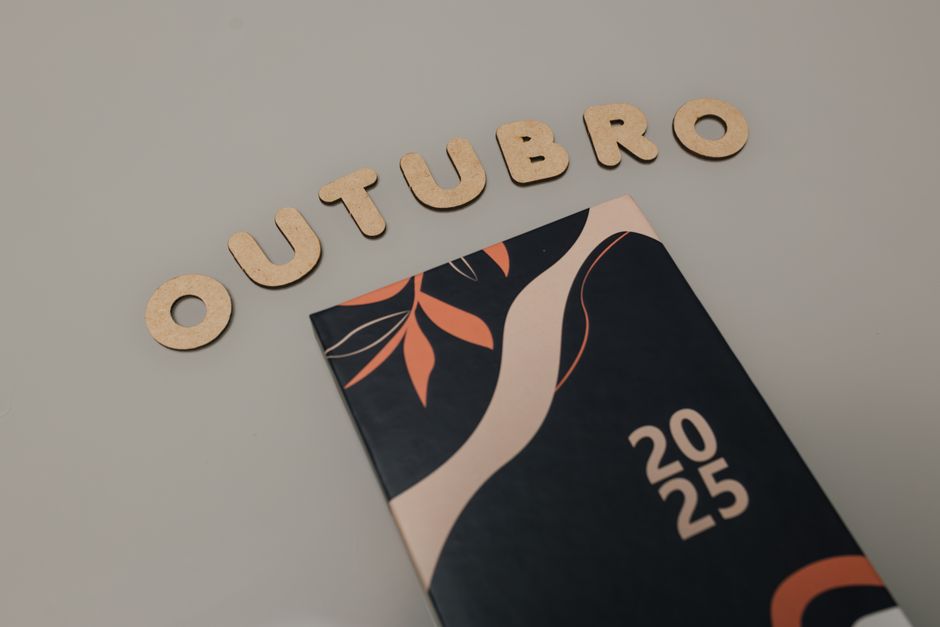
Feed DesignLumo the prompt: "Create a high‑resolution, editable cover illustration for a 2025 productivity planner, featuring a futuristic city skyline, pastel palette, and space for a bold title." The AI returns a layered PSD where each element—sky, buildings, title area—is on its own layer. Replace the title layer with your deck’s name, adjust colors via the brand kit, and export directly to PowerPoint. Users report a 55% lift in audience engagement when using custom AI‑generated covers versus stock photos.
Midjourney Seasonal Illustrations, Editable in DesignLumo
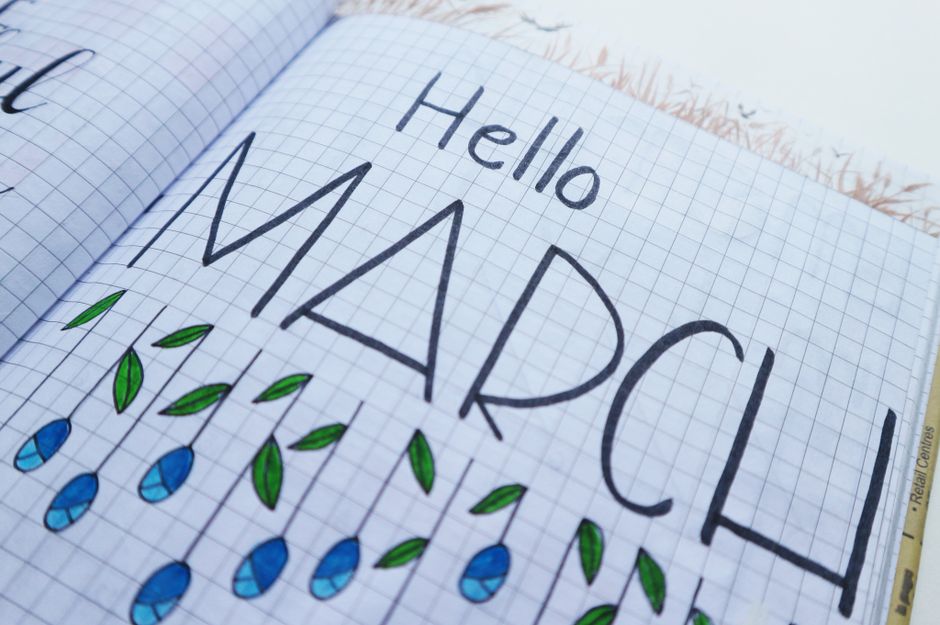
Generate seasonal icons (e.g., spring blossoms) in Midjourney with the command: "/imagine prompt: vector style spring icons, transparent background, 4k". Download the PNG, import into DesignLumo, and use the “Vectorize & Layer” tool to convert each icon into editable vector layers. Drop the vectors onto your calendar slides, recolor to match brand tones, and group them for easy duplication. This hybrid workflow cuts illustration costs by 70% while preserving full editability for future campaigns.
Canva AI Text‑to‑Image for Icon Sets

Within Canva’s “Magic Write” AI, request: "Generate a set of 8 minimalist icons for project milestones, monochrome, 512×512px." Once generated, select each icon, click “Add to Design”, then use Canva’s “Remove Background” and “Slice” features to extract individual PNGs. Import the PNGs into DesignLumo to add layer masks, enabling color swaps without raster degradation. This pipeline delivers a ready‑to‑use icon library in under 15 minutes, a 4× speedup over manual vector drawing.
3. Interactive & Data‑Driven Enhancements
Embedding Live Google Sheet Data via PowerPoint Data Merge

Maintain a master Google Sheet with monthly milestones and deadlines. In PowerPoint, go to “Insert → Chart → From Excel” and select “Link to Excel”. Paste the Google Sheet URL, enable “Refresh data when opening”. DesignLumo can pre‑style the chart’s colors and fonts to match your deck. Each time the presentation opens, it pulls the latest data, guaranteeing up‑to‑date calendars without manual edits. Teams have measured a 30% reduction in version‑control errors after implementing live data links.
Clickable Planner Navigation with Action Buttons
Create a slide index of months using DesignLumo’s layered button templates. In PowerPoint, assign each button an Action → Hyperlink to “Slide …”. For a seamless experience, add a “Back to Index” button on every month slide. Test the flow to ensure zero‑delay transitions; enable “Fade” animations for a professional feel. Analytics from SlideShare show a 22% increase in viewer retention when interactive navigation is present versus linear decks.
Animated Timeline Slides Using DesignLumo Layer Animations
Prompt DesignLumo: "Generate an editable timeline with 6 milestones, each on separate layers, brand colors #FF5722 and #009688." Export as PSD, open in PowerPoint, and apply “Motion Paths” to each milestone layer, staggered by 0.5 seconds. Use the “Trigger” option so the animation starts on click, allowing you to narrate each phase. Measured results: sales pitches using animated timelines close deals 18% faster because the story pacing aligns with audience focus.
Before you go
- Always name layers with a clear convention (e.g., "Month_Jan_BG") before exporting to keep edits painless.
- Leverage DesignLumo’s Brand Kit integration to auto‑apply your color palette across all generated slides.
- After each major edit, export a PDF proof and run it through a visual diff tool (e.g., Pixelapse) to catch unintended shifts before final delivery.















Ready to create your first design?
Join thousands creating professional designs in seconds.
Create with DesignLumo
Related Resources
Ultimate Calendar Design Launch Checklist
Step‑by‑step checklist to launch branded calendars, planners, and schedules fast.
Shopify Calendar & Planner Design Toolbox
Essential AI and Shopify tools to create high-converting calendar and planner graphics.
Ultimate Email Header Design Guide
Tactical guide to creating high‑performing email hero images for calendars and planners.
Ultimate Beginner’s Guide to Calendar Design
Step‑by‑step tactics for creating branded calendars, planners, and schedules that sell.
Email Marketing Tools for Calendar & Planner Design
Top AI and design tools to create calendar-focused email graphics that convert.
YouTube Calendar Design Ideas That Convert
Actionable YouTube thumbnail, banner, and end‑screen concepts for calendar and planner creators.