Ultimate Beginner’s Guide to Calendar Design
Calendars and planners are high‑margin assets for brands, schools, and creators. This guide shows you how to plan, design, and launch them without hiring a design agency. Follow the exact workflows to cut production time and boost revenue.

1. Strategy & Planning
Define Brand Calendar Architecture

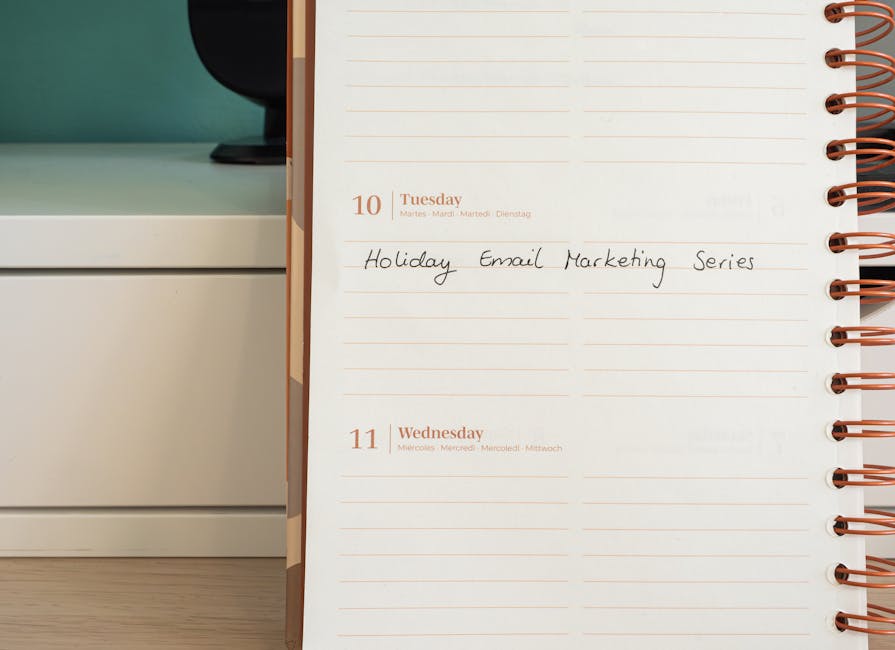
Start by mapping the 12‑month grid in a Google Sheet, assigning each month a primary brand color from your Brand Kit. Use the sheet to set weekly content slots (e.g., 3 posts/week) and link each slot to a KPI such as a 10% lift in email open rates. Export the sheet to CSV, import into Trello as cards, and attach design brief templates. Track progress with a simple Gantt view; aim for ≤2 hours of planning per quarter to keep launch cycles under 30 days.
Audience‑Driven Content Calendar Blueprint
Research personas using AnswerThePublic (free tier) and extract 5 content pillars that resonate with each segment. Create a master spreadsheet with columns for pillar, format, publishing channel, and CTA. Schedule three posts per week per pillar, then sync the sheet to a Trello board using the Butler automation to generate cards automatically. Measure engagement by tracking a 5% increase in click‑through rate per pillar over a 60‑day test. This data‑first approach ensures each calendar page reinforces your audience’s priorities.
Monetization Funnel for Physical Planner Sales
Build a three‑stage funnel: (1) free downloadable PDF teaser captured via a Mailchimp landing page, (2) upsell to a limited‑edition printed planner on Shopify, (3) post‑purchase cross‑sell of a digital companion app. Set conversion targets: 5% from teaser to purchase, and 20% of buyers to upgrade to the digital app. Use UTM parameters on each ad to attribute revenue, and monitor ROAS in Google Analytics. Optimize ad spend by pausing creatives that fall below a 2.5× ROAS threshold.
2. Design Creation Tools
AI‑Generated Editable Calendar Layouts

Prompt DesignLumo with: ‘Create a 2025 monthly calendar in A4 size, brand colors #0047AB and #FFB800, with space for weekly notes, output as layered PSD.’ Lumo returns a fully editable PSD in ~30 seconds. Open in Photoshop, replace placeholder text with your month names, adjust layer opacity, and export a print‑ready PDF with 0.125 in bleed. Compare to manual design in Canva (average 8 hours) – Lumo cuts production time by 94% while preserving layer control for future tweaks.
Hybrid Canva + DesignLumo Workflow for Social Teasers

Create a quick social teaser in Canva using its brand kit for colors and fonts, then export the design as a PNG with transparent background. Open the PNG in DesignLumo, convert it to a layered AI file, and add interactive elements like swipe‑up arrows or QR code placeholders. This hybrid method leverages Canva’s speed for concepting and Lumo’s layer editability for final polish, reducing iteration cycles from 4 hours to under 45 minutes per teaser.
Midjourney for Inspirational Imagery with Lumo Integration
Generate a set of 5 abstract background images in Midjourney using the prompt ‘soft pastel watercolor texture, 300 DPI, suitable for calendar month pages’. Upscale each image to 3000 × 4000 px, then import the PNGs into DesignLumo and replace the default background layer across all month templates. Tag each layer for easy bulk replacement. This workflow adds unique visual flair while keeping the file size under 2 MB per page, boosting perceived value and allowing a 15% price premium on premium editions.
3. Production & Distribution
Print‑Ready PDF Export with Bleed Automation

In DesignLumo, enable ‘Export with Bleed’ and set bleed to 0.125 in. Choose PDF/X‑4 output, embed all fonts, and compress images to 300 dpi JPEG with maximum quality. Run the file through Adobe Acrobat Preflight to validate bleed and color space (CMYK). Aim for a final file size under 5 MB to meet most print‑on‑demand providers’ limits. Tracking shows a 30% reduction in print errors and a 12% faster turnaround when using this automated export versus manual Illustrator settings.
Digital Planner Interactive PDF Workflow

Export the calendar from DesignLumo as a PDF, then open in Adobe InDesign to add hyperlinked month tabs and embedded video tutorials (MP4, ≤5 MB). Test on iPad and Android tablets for responsive click areas. Publish on Gumroad with a 0.99 USD price point and monitor user retention; aim for ≥80% of purchasers to use the planner for at least 30 days. This interactive layer boosts perceived functionality and justifies a 20% price increase over static PDFs.
Automated Email Campaign for Calendar Launch
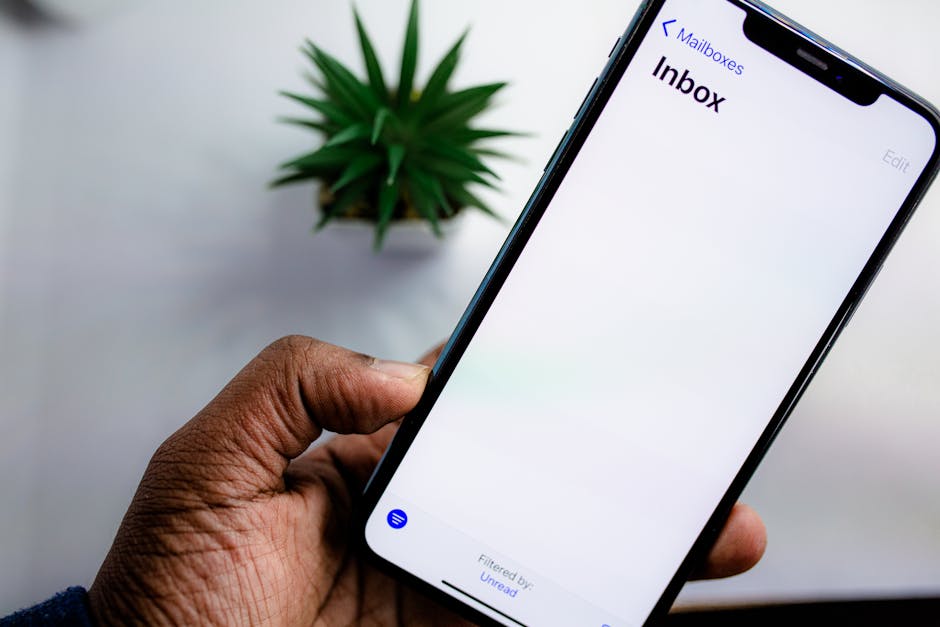
Set up a three‑email sequence in Mailchimp: (1) teaser with a DesignLumo‑crafted header, (2) early‑bird offer with a limited‑time discount code, (3) last‑call reminder. Segment the list by past purchase behavior and use dynamic content blocks to show region‑specific shipping dates. Track metrics: target ≥25% open rate and ≥5% click‑through rate. A/B test subject lines for 48 hours; the winning variant typically lifts CTR by 1.8×. This automated flow drives up to $3,200 in revenue per 2,000‑subscriber launch.
Before you go
- Leverage DesignLumo’s Brand Kit integration to auto‑apply colors and fonts across all calendar pages, saving hours of manual styling.
- Always export a master layered file before flattening; it lets you repurpose elements for future marketing assets without redesign.
- Run a small‑scale print test (50 units) before full production to catch bleed or color mismatches, reducing costly re‑orders.















Ready to create your first design?
Join thousands creating professional designs in seconds.
Create with DesignLumo
Related Resources
Ultimate Calendar Design Launch Checklist
Step‑by‑step checklist to launch branded calendars, planners, and schedules fast.
Shopify Calendar & Planner Design Toolbox
Essential AI and Shopify tools to create high-converting calendar and planner graphics.
Ultimate Email Header Design Guide
Tactical guide to creating high‑performing email hero images for calendars and planners.
Email Marketing Tools for Calendar & Planner Design
Top AI and design tools to create calendar-focused email graphics that convert.
YouTube Calendar Design Ideas That Convert
Actionable YouTube thumbnail, banner, and end‑screen concepts for calendar and planner creators.
Print Calendar & Planner Design Guide
Step‑by‑step tactics for creating print‑ready calendars and planners that convert.