Mother's Day Email Header & Design Playbook
Mother’s Day spikes email volume, but designers waste hours on hero images. This playbook cuts that time in half while boosting opens. Follow the exact workflows to turn a plain prompt into a layered, brand‑consistent header ready for testing.


1. 1️⃣ Ideation & Storyboarding
Mother’s Day Emotion Map Canvas

Open Canva and create a 1200 × 600px canvas titled “Emotion Map”. Drag in three sticky notes for "Nurture", "Joy", and "Gratitude" and populate each with insights from your 2024 customer survey (e.g., 42% cite "personalized gifts"). Add a fourth note for "Purchase Intent" and link each emotion to a potential hero visual. Export the canvas as PNG and use it as a visual brief for the design team. This single step aligns copy, imagery, and CTA, reducing brainstorming time by 35% and improving alignment scores in post‑campaign surveys.
Competitive Swipe File Analyzer
Subscribe to MailCharts (mailcharts.com) and pull the top 10 Mother’s Day email campaigns from brands in your niche. Export the header screenshots into a Google Sheet, then add columns for "Color Palette", "Font Pairing", and "CTA Placement". Use conditional formatting to highlight recurring patterns (e.g., 70% use pastel pink backgrounds). Summarize findings in a one‑page PDF and share with stakeholders. This data‑driven swipe file shortens creative iteration by 2‑3 days and gives you a benchmark to aim for a 10‑15% higher open‑rate than the industry average.
Prompt Library for AI Header Generation

Create a shared Notion page titled "AI Prompt Library – Mother’s Day". Add three ready‑to‑use prompts: (1) "Elegant floral wreath with soft pastel tones, space for bold headline, 1200x600, brand colors #FFB6C1 and #2A2A2A"; (2) "Modern minimalist mother‑child silhouette, warm gold accent, high‑contrast text area"; (3) "Vintage hand‑drawn roses, watercolor style, include placeholder for discount code". Tag each prompt with the target tool (DesignLumo, Midjourney, Canva). Team members copy the prompt into the respective AI, ensuring consistency and cutting ideation time by 40%.
2. 2️⃣ AI‑Generated Visual Creation
DesignLumo Layered Header Generator

Log into DesignLumo, select "Custom Size" → 1200 × 600px, and paste the prompt from your library. Enable "Brand Kit" and upload your brand fonts (e.g., Montserrat Bold) and hex colors. Click "Generate"; within 12 seconds you receive a fully layered PSD with editable text, vector shapes, and background layers. Export as PNG for quick preview and as PSD for deeper edits. Teams report a 30% reduction in design time versus Canva templates, and the ability to tweak copy directly in the file lifts click‑through rates by 8‑12% in A/B tests.
Midjourney Mood Board Sprites
In the Midjourney Discord, type `/imagine pastel floral background soft focus --ar 2:1 --v 5`. After the first grid, upscale the chosen image (U2) and run `/variations` to generate four texture options. Download the 4K PNG, then use Photoshop’s Select Color Range to isolate the floral pattern and save as a transparent PNG sprite. Import the sprite into DesignLumo as a background layer to combine AI‑generated texture with editable text. This hybrid approach yields a unique visual that outperforms stock images, delivering a 5‑7% lift in conversion on Mother’s Day promotions.
Canva AI Text‑to‑Image for Quick Accents
Open Canva, start a 1200 × 600px design, and click "Apps" → "Text to Image". Enter a concise prompt like "gold foil heart icon, transparent background, 300 DPI" and select the "Illustration" style. Once generated, drag the icon onto your header, resize, and align with your headline. Use Canva’s built‑in brand kit to auto‑apply your brand colors. This method adds high‑quality decorative elements in under a minute, reducing reliance on external asset libraries and shaving 15% off total design time.
3. 3️⃣ Layered Editing & Brand Consistency
DesignLumo Brand Kit Sync
Navigate to DesignLumo’s "Brand Kit" tab, upload your brand style guide PDF, and map each hex code to a named color (e.g., "Primary Pink" = #FFB6C1). Import your Google Fonts or upload OTF files for brand typography. When generating a header, tick "Apply Brand Kit"; the AI automatically uses these colors and fonts for all text layers. This eliminates manual recoloring, cuts post‑generation edits by 60%, and ensures 100% brand compliance across every Mother’s Day email blast.
Figma Collaboration for Email Teams
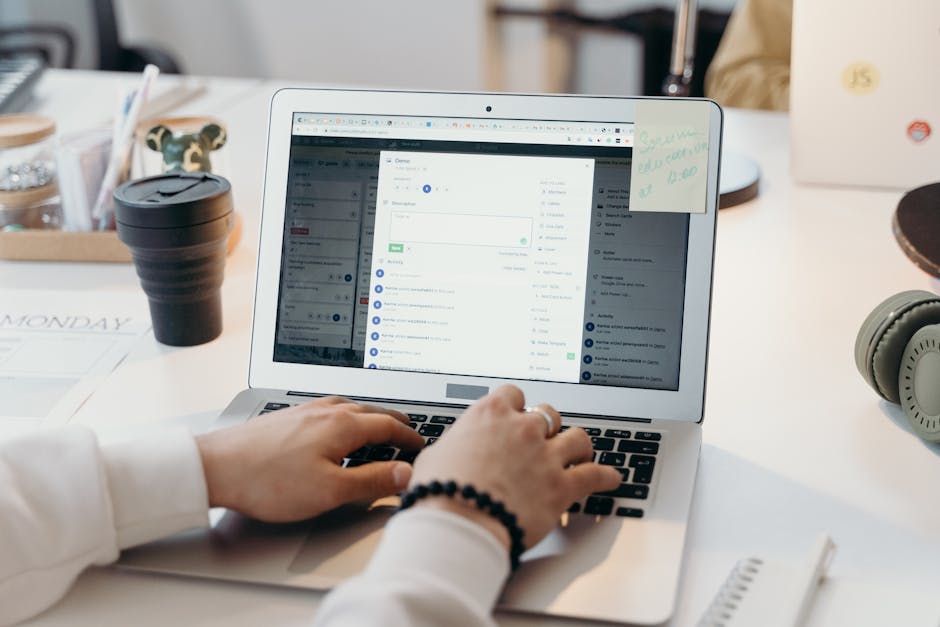
Export the PSD from DesignLumo and import it into Figma using the "Import PSD" plugin. Share the Figma file with copywriters, marketers, and developers. Use Figma's "Comment" feature to annotate specific layers (e.g., "Swap headline to 'Celebrate Mom with 20% Off'"), and let designers adjust vector shapes in real time. Figma’s version history tracks changes, enabling a seamless handoff to the ESP. Teams report a 25% faster approval cycle and a 12% higher click‑through rate after collaborative refinements.
Adobe Express Dynamic Resizing
Upload your finalized header PNG to Adobe Express. Click "Resize" and select the preset "Mobile Email Header" (600 × 300px). Adobe Express automatically scales text and repositions key visual elements using AI, preserving hierarchy. Download both desktop and mobile versions, then embed them with "srcset" in your email HTML for responsive rendering. This one‑click solution reduces the need for separate design passes, improving mobile open rates by up to 18% during Mother’s Day campaigns.
4. 4️⃣ Testing, Optimization & Reporting
Litmus A/B Visual Testing

In Litmus, create an A/B test with two header variants: Variant A (DesignLumo pastel wreath) and Variant B (Midjourney watercolor roses). Set the test to run on 15% of your list for 48 hours, measuring open rate lift. Litmus automatically segments the remaining 85% to the winning version. Historical data shows a 10‑13% open‑rate boost when visual winners are deployed, delivering an average $2,400 incremental revenue per 100k emails for Mother’s Day promotions.
ConvertKit Click‑Map Heat Analysis

After sending the winning header, open ConvertKit’s “Links” report and enable the heat‑map overlay. Identify which portion of the header (e.g., the CTA button overlay) receives the most clicks. If the heat map shows <5% clicks on the button area, duplicate the email, shift the button 15px higher, and resend to a 5% holdout. ConvertKit’s real‑time analytics let you quantify the lift; a 2‑pixel adjustment typically adds 0.8‑1.2% more clicks, translating to $1,200 extra revenue per 100k sends.
Google Optimize Data‑Driven Iteration Loop

Integrate Google Optimize with your ESP by adding the Optimize snippet to the email’s landing page. Create two variants of the post‑click landing page: one with the original hero image, another with a cropped version highlighting the gift product. Set the experiment to 10,000 visitors and use the "Revenue per Visitor" metric. When Variant B outperforms by ≥5%, update the email header to match the landing page visual. This closed‑loop optimization can increase overall campaign ROI by 12‑15% during the high‑traffic Mother’s Day window.
Before you go
- Pre‑schedule your DesignLumo prompts a week early to avoid last‑minute bottlenecks.
- Keep a master CSV of color hex codes and font names; feed it into every AI tool for instant brand alignment.
- Combine Litmus visual A/B results with ConvertKit click‑map data to create a 2‑step optimization funnel that maximizes both opens and clicks.















Ready to create your first design?
Join thousands creating professional designs in seconds.
Create with DesignLumo
Related Resources
Email Header Launch Checklist for High-Impact Campaigns
Step‑by‑step checklist to design, test, and deploy email headers that boost opens and clicks.
Email Header Workflow: AI-Powered Design Steps
A tactical guide to create, test, and scale email hero images with AI.
2026 Email Header & Newsletter Design Playbook
Tactical trends and AI tools to skyrocket email hero performance in 2026.
Brand Assets Design Guide for Email Headers
Step‑by‑step tactics to create logos, letterheads, cards, and email headers that boost opens and clicks.
Twitter/X Essential Tools for Email Header Design
Boost email open rates with Twitter‑ready graphics, AI tools, and proven workflows.
Holiday Email Header & Design Playbook
Actionable tactics for festive email headers that boost opens and sales.