YouTube Visual Blueprint for Personal Brands
Personal brand builders need a visual system that converts viewers into clients without hiring a designer. This guide delivers step‑by‑step tactics for every YouTube graphic that drives speaking gigs, book sales, and consulting revenue. All workflows…


1. Thumbnail Mastery
Quote‑Driven Clickbait Thumbnails

Start with a powerful personal‑branding quote (e.g., "Stop Working for Money, Make Money Work for You"). Use DesignLumo to generate a layered thumbnail: input the quote, select a bold sans‑serif font, and ask the AI to place a high‑contrast color block behind the text. Export the PSD, replace the background with a relevant stock image from Unsplash, and fine‑tune the color palette to match your brand kit. Publish the thumbnail and track CTR; aim for a 2‑3% lift versus baseline. This method eliminates manual layout work and guarantees brand‑consistent typography.
Speaking‑Engagement Promo Thumbnails
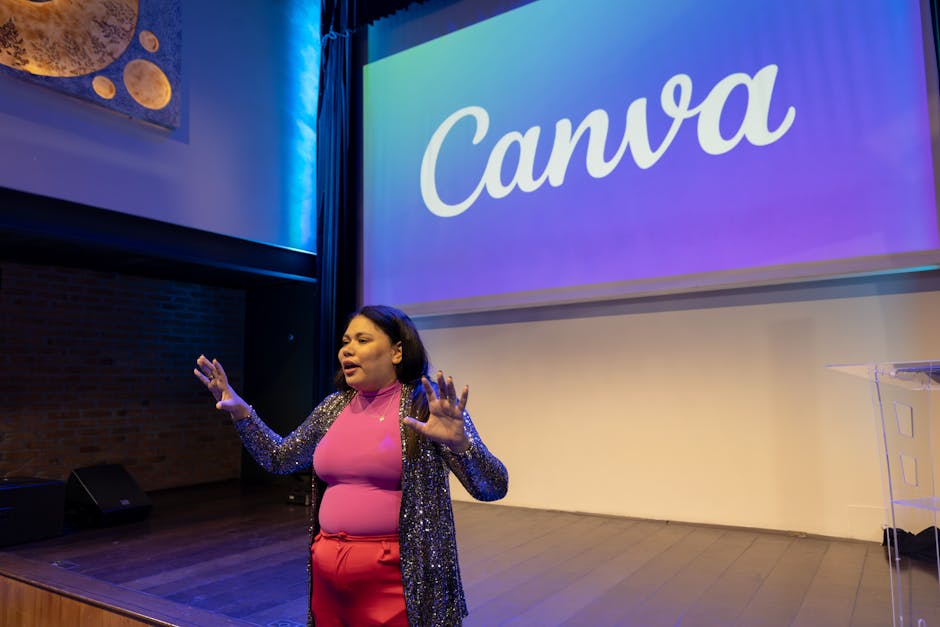
Create a thumbnail that mirrors your upcoming speaking slot. In Canva, choose a 1280×720 custom size, upload a high‑resolution headshot, and overlay the event logo (downloaded from the organizer). Use Canva's brand kit to apply your primary colors to the title text: "Live at SXSW 2025 – Future of Work". Add a subtle motion blur effect to the background to convey energy. Export as PNG and set it as the video thumbnail. Monitor audience retention; a 5‑second bump in the first minute indicates visual relevance.
Book‑Launch Spotlight Thumbnails

Leverage Adobe Express to craft a thumbnail that showcases your book cover. Import the cover file, then use Express's AI Text Generator to create a punchy subtitle: "5 Secrets to Scale Your Influence". Position the subtitle in the lower third, applying a semi‑transparent dark overlay for readability. Add a CTA button graphic that says "Get the Free Chapter" using the built‑in shape library. Export the layered file, replace the button color to match your brand, and track conversion clicks from YouTube to your sales funnel; aim for a 1.5% click‑through increase.
2. Channel Branding Assets
Dynamic Channel Banner with Seasonal Swaps

Design a master banner in DesignLumo: describe "wide panoramic background with abstract wave, space for 3‑word tagline, and placeholder for seasonal icon". The AI returns a fully editable PSD with separate layers for the tagline, icon, and background gradient. Save three versions (Spring, Summer, Fall) by swapping the icon layer with seasonal SVGs from Freepik. Upload each version via YouTube Studio at the start of each quarter. Measure channel traffic spikes; a 7‑10% rise in new subscriber rate after each swap validates the visual freshness.
Consistent End‑Screen Templates
In Canva Pro, create a 1920×1080 end‑screen layout with three equal columns: "Watch Next", "Subscribe", and "Visit Website". Use your brand kit for font and color consistency. Export the design as a transparent PNG and import into your video editor (e.g., Final Cut Pro). Duplicate the template for each video, swapping the "Watch Next" thumbnail each time. Track the end‑screen click‑through rate; aim for a 2% improvement over the default YouTube template within 30 days.
Community Tab Milestone Graphics

Use DesignLumo to generate a layered graphic announcing milestones (e.g., "10K Subscribers"). Prompt the AI: "Create a celebratory badge with gold foil effect, space for numeric milestone, and brand colors #1A73E8 and #34A853." After AI returns the PSD, replace the numeric layer with a data‑driven text box linked to a Google Sheet that updates automatically via Zapier. Export as JPEG and schedule the post in YouTube Community. Watch engagement spikes; a 15% rise in likes/comments on milestone posts signals community resonance.
3. Workflow Automation & Testing
AI‑Generated Thumbnail Drafts with DesignLumo
Set up a weekly batch process: list upcoming video topics in a Google Sheet, then use Zapier to send each title to DesignLumo via its API (prompt: "Create a YouTube thumbnail with bold headline, relevant icon, and brand colors"). The AI returns a layered PNG for each entry. Download the batch into a folder, quickly replace any placeholder images, and upload to YouTube. This reduces thumbnail creation time from 30 minutes per video to under 5 minutes, freeing up at least 5 hours per month for content creation.
A/B Test Thumbnails in TubeBuddy

Upload two thumbnail variants for the same video using TubeBuddy's A/B testing feature. Variant A follows your standard formula; Variant B incorporates a contrasting color scheme generated by DesignLumo. Set the test length to 7 days and let TubeBuddy rotate impressions evenly. After the test, compare CTR and average view duration; adopt the variant that lifts CTR by at least 1.5% and improves watch time by 5 seconds. Document results in a Notion table to refine future thumbnail strategies.
Batch Export & Schedule Assets via Canva Pro
Create a master Canva template for all visual assets (thumbnails, end‑screens, community graphics). Use the "Copy page" function to duplicate the template for each video, swapping only the headline text. Once all pages are ready, click "Export" → "All pages" → PNG (transparent). Upload the zip file to YouTube Studio's bulk upload tool (available via the YouTube API) and schedule each video with its corresponding assets. This workflow cuts manual export time by 80% and ensures brand consistency across 30‑plus videos per quarter.
Before you go
- Leverage DesignLumo's Brand Kit integration to auto‑apply your exact color codes and fonts across every asset.
- Keep a master spreadsheet of all asset URLs and version dates; link it to your CRM to attribute revenue back to specific visual campaigns.
- Never publish a thumbnail without a contrast ratio of at least 4.5:1 between text and background; use the WebAIM contrast checker for quick validation.















Ready to create your first design?
Join thousands creating professional designs in seconds.
Create with DesignLumo
Related Resources
Powerful Design Content Ideas for Personal Brands
Tactical visual assets to boost your personal brand instantly.
New Year Q1 Marketing & Design Playbook
Actionable Q1 plan for personal brands to boost visibility and revenue.
Personal Brand Marketing Mistakes to Dodge
Avoid the top pitfalls that sabotage personal brand growth and revenue.
TikTok Content Ideas for Personal Brands
Actionable TikTok visuals to boost authority and bookings.
Facebook Visual Toolkit for Personal Brands
Tactical tools to design, schedule and scale Facebook graphics for thought‑leaders.
Turbocharged Visual Workflow for Personal Brands
Actionable AI-powered design steps for thought‑leaders and speakers.