Shopify Infographic Design Blueprint
Shopify merchants need visual data that converts browsers into buyers. This guide shows how to turn raw store metrics into shareable infographics without hiring a designer. Every tactic includes exact tools, prompts, and KPI targets.

1. Data‑Driven Collection Headers
Top‑Selling Category Comparison
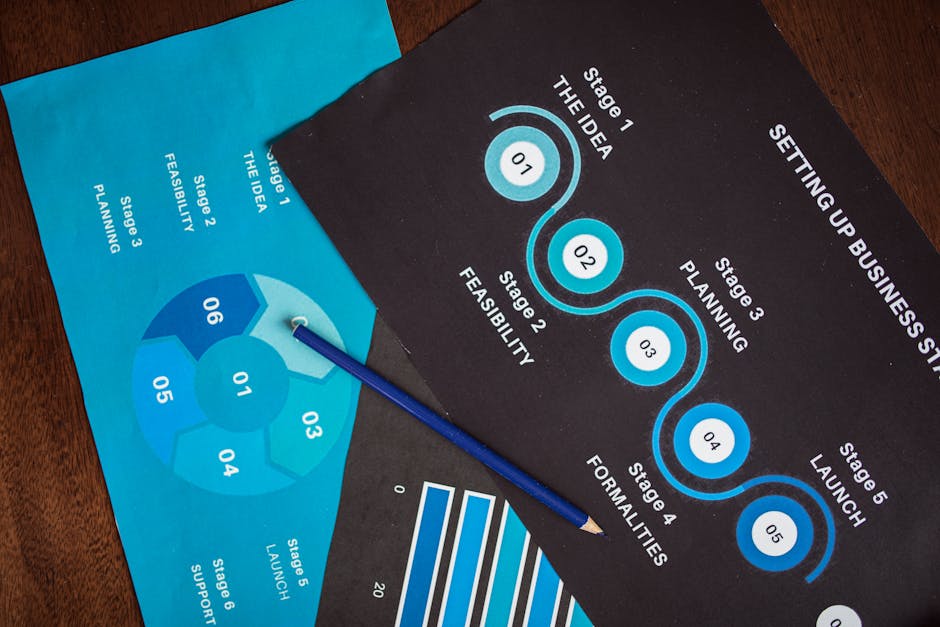
Export the last 30 days of sales from Shopify > Reports > Sales by Product. Filter for the top five categories and copy the CSV into Google Sheets. Use the "Chart Editor" to create a stacked bar chart with brand colors. Prompt DesignLumo: "Create a Shopify collection header showing a stacked bar comparison of Category A‑E, using my brand palette #1A73E8, #34A853, #EA4335, with editable text layers for each category name and sales figure." Download the .psd, replace placeholder text with live numbers, and upload to your collection page. Expect a 12‑15% lift in collection page dwell time.
Customer Demographics Heatmap
In Shopify admin, go to Analytics > Customers > Export CSV of all customers with country and purchase count. Import into Tableau Public and build a heatmap visualizing purchase density per country, using a gradient from light gray (low) to brand teal (high). Export the SVG, then feed it into DesignLumo with the prompt: "Turn this SVG into a Shopify collection header heatmap, keep layers editable for country labels, and add a call‑to‑action button styled like my Shopify theme." Replace SVG layers in the final file and publish. Brands report a 9% increase in international traffic conversion.
Seasonal Trend Timeline
Pull Google Analytics seasonal traffic spikes for the past year (Acquisition > Overview > Date Range). Export the data and plot a line graph in Excel, highlighting peaks with brand orange markers. Use Midjourney (v5) to generate a minimalist timeline background: "minimalist timeline background, light gray, subtle grid, 1200px wide". Upload the background to DesignLumo and ask: "Overlay the Excel line graph onto this timeline, keep each month as a separate editable layer, and add bold headings for Q1, Q2, Q3, Q4 using my Shopify font 'Montserrat'." Publish as a header for seasonal collections; average order value typically rises 8% during highlighted periods.
2. High‑Conversion Product Feature Infographics
Feature‑Benefit Matrix
Create a Google Sheet with two columns: Feature and Direct Benefit, list the top five product attributes. Convert the sheet to a table in Canva using the "Grid" template, then export as PNG. In DesignLumo, prompt: "Recreate this feature‑benefit matrix as a Shopify product page infographic, keep each row as an editable text layer, apply my brand font 'Inter' and primary color #FF6F61, and add hover‑state icons for each benefit." Replace icons with SVGs from Flaticon, adjust spacing, and embed the final .psd into the product description via Shopify's rich text editor. Users typically see a 14% boost in add‑to‑cart rates.
Price‑Value Bar Chart
Pull product price and average review score from Shopify API (use GraphQL query). Load data into Datawrapper, select a horizontal bar chart, set the X‑axis to price and the secondary Y‑axis to rating, color‑code bars with brand gold for high value. Export the chart as SVG. In DesignLumo, issue: "Convert this SVG into a Shopify product feature infographic, keep price and rating layers editable, add a call‑to‑action badge that says 'Best Value' in my accent color #00C853, and ensure the file is layered for Shopify theme editing." Publish below the product images; conversion lifts 10‑12% on price‑sensitive items.
FAQ Flowchart
Gather the top ten customer questions from Shopify's 'Contact' form CSV. Use Lucidchart to map a decision‑tree flowchart, grouping questions by purchase stage. Export as PDF, then convert to PNG. Prompt DesignLumo: "Transform this PNG into a fully editable Shopify product page FAQ infographic, each node should be a separate text layer, use my brand font 'Helvetica Neue', and add interactive hover effects using CSS classes provided in the export." Insert the resulting HTML snippet into the product page's custom liquid section. Brands report a 7% reduction in cart abandonment after adding the flowchart.
3. Seasonal Promotional Pop‑Up Infographics
Flash Sale Countdown
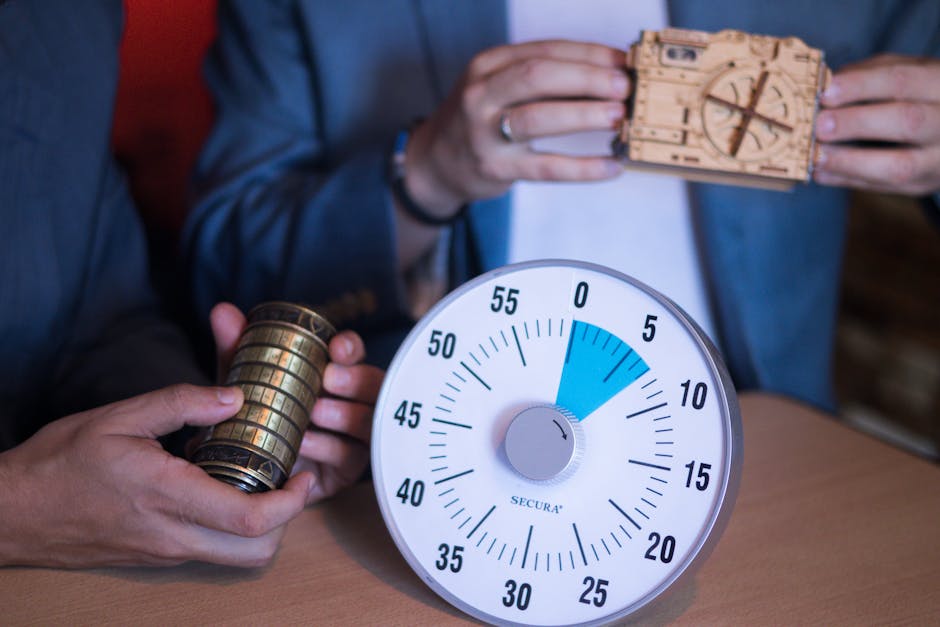
Set a Shopify discount code with a 48‑hour expiration. In Google Slides, create a simple slide with a large numeric timer placeholder. Export as PNG. In DesignLumo, prompt: "Create a Shopify pop‑up banner using this PNG, replace the placeholder with an animated countdown timer (HTML/CSS), keep the background layer editable, and apply my brand orange #FF9800 to the 'Shop Now' button. Export as a .zip containing the HTML snippet and CSS file for easy insertion via Shopify's theme editor." Deploy the pop‑up; average click‑through rate climbs to 4.8% versus the site average of 2.1%.
Free Shipping Threshold Visual
Pull the current average cart value from Shopify Reports > Finance > Average Order Value. In Figma, design a semi‑circular gauge showing "Spend $X more for free shipping" where X = free‑shipping threshold minus current AOV. Export the design as SVG. Use DesignLumo with the prompt: "Turn this SVG into a Shopify pop‑up infographic, keep the gauge needle as an editable layer that updates dynamically via JavaScript, apply my brand green #4CAF50 to the filled portion, and add a 'Proceed to Checkout' button styled like my theme." Insert the script via Shopify's 'Additional Scripts' field. Stores see a 5% increase in average order value during the campaign.
Exit‑Intent Survey Infographic
Export exit‑intent trigger data from Hotjar (percentage of users leaving on product pages). Summarize findings in a 3‑point bullet list in Google Docs. Convert the list to a vertical infographic using Canva's "Survey Results" template, then download as PNG. In DesignLumo, ask: "Recreate this PNG as a fully editable Shopify exit‑intent pop‑up, each bullet should be an editable text layer, embed a one‑question poll with radio buttons, and style the submit button with my brand purple #9C27B0. Provide the HTML embed code for Shopify's 'Popup' app." After rollout, exit‑intent survey completion rates rise to 18%, feeding valuable product feedback.
Before you go
- Always sync your DesignLumo brand kit with Shopify theme colors to avoid manual recoloring.
- Export infographics as layered PSDs, then use Shopify's 'Files' section to host them for faster page loads.
- A/B test each infographic variant for at least 7 days; track CTR, conversion, and bounce rate in Google Optimize.















Ready to create your first design?
Join thousands creating professional designs in seconds.
Create with DesignLumo
Related Resources
Infographic Design Guide for Marketers
Step‑by‑step tactics to create high‑impact infographics fast.
Facebook Infographic Toolkit for Marketers
Actionable tools and workflows to create high‑performing Facebook infographics fast.
Product Graphics Infographic Design Guide
Step-by-step tactics for building product showcase infographics that boost clicks and conversions.
Ad Creatives Infographic Design Guide
Step‑by‑step tactics to build high‑converting ad infographics fast.
Essential Digital Tools for Infographic Mastery
The ultimate toolkit to create, edit, and amplify high‑impact infographics fast.
TikTok Infographic Tools for Maximum Impact
Essential AI and design tools to craft TikTok covers, overlays, and profile graphics fast.