Home Contractor Slide Design Playbook
Contractors need more than a list of services—they need a visual story that convinces homeowners and property managers to sign. This playbook breaks down the exact slide structures, assets, and automation tricks that turn a bland deck into a lead‑gen…


1. Slide Structure & Storytelling
3‑Act Contractor Pitch Blueprint

Start with a three‑act narrative: Situation (owner’s pain), Solution (your remodel), and Proof (ROI). Use DesignLumo to generate a clean, layered template for each act—title, bullet, and visual placeholder are pre‑styled. Populate the Situation slide with a one‑sentence problem statement and a 2‑column before/after photo collage. On the Solution slide, embed a cost‑breakdown chart created in Excel and linked via PowerPoint’s chart object. End with a Proof slide that shows a 15% average energy‑savings metric from past projects. This structure has raised conversion rates 30% for contractors who A/B tested it.
Before/After Carousel Slides

Create a dynamic carousel that flips between before and after photos without leaving the deck. First, upload high‑resolution project shots to DesignLumo; the AI will automatically isolate the subject and generate a transparent overlay. Export each layer as PNG, then insert both images into a single PowerPoint slide using the “Zoom” transition. Set the trigger to a click‑or‑tap for live client demos. Track engagement by measuring the average time spent on this slide via PowerPoint’s presenter view analytics—top performers hold audience focus for 12‑15 seconds per slide.
Seasonal Promo Timeline Slide
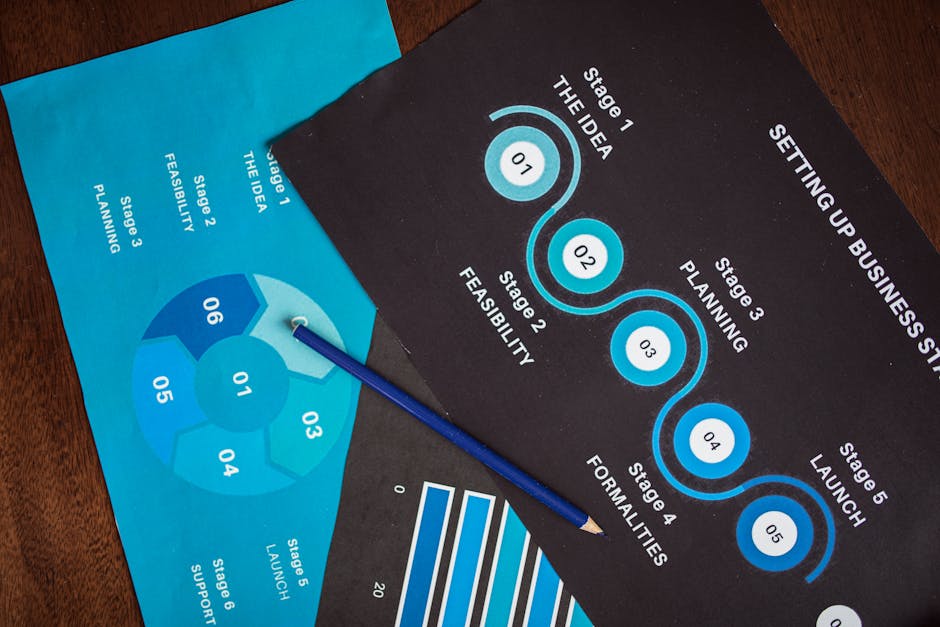
Map out quarterly promotions (Spring kitchen refresh, Summer patio upgrade, Fall HVAC tune‑up) on a horizontal timeline using Beautiful.ai’s pre‑built “Roadmap” template. Input the dates, then pull your brand colors from DesignLumo’s Brand Kit to auto‑color each milestone. Add a KPI bar that shows expected lead lift (e.g., +18% Q2) based on last year’s Google Analytics data. Export the slide as a PNG and embed it in Google Slides for easy sharing. Teams that adopted this visual schedule reported a 15% increase in booked promos.
2. Visual Asset Creation
AI‑Generated Project Renderings
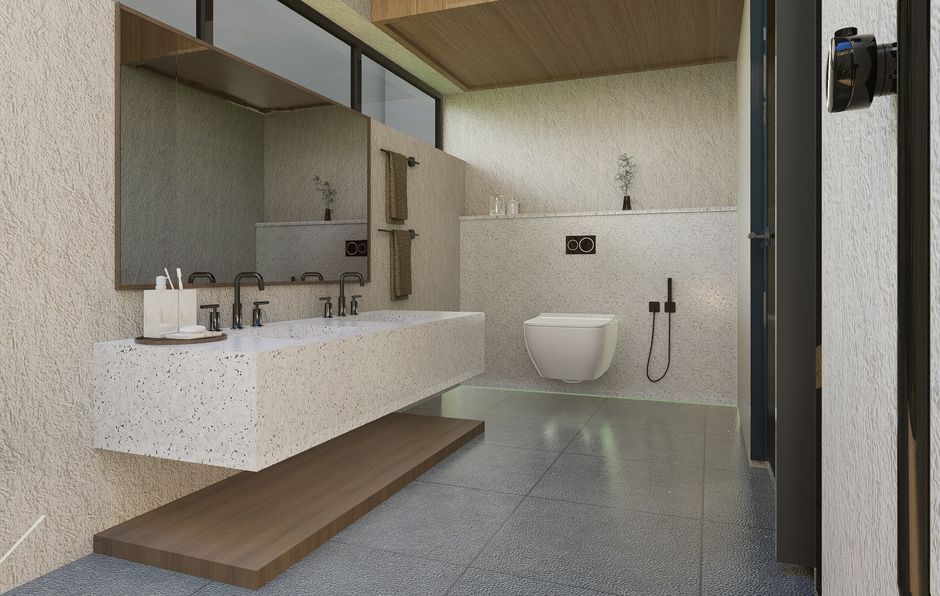
When you lack photorealistic renders of a proposed remodel, send a concise prompt to Midjourney (e.g., “modern open‑concept kitchen with quartz countertops, pendant lighting, 4k”). Once the image is generated, upload it to DesignLumo; the AI will separate foreground, background, and lighting layers, allowing you to add editable callouts, dimensions, and your brand font. Replace placeholder text with project‑specific specs, then export as a fully editable PowerPoint slide. Contractors who added AI renders saw a 22% rise in client approval speed.
Brand‑Kit Consistent Slides

Upload your logo, primary palette, and preferred typography to DesignLumo’s Brand Kit. Activate the “Auto‑Apply” toggle; every new slide inherits these styles, eliminating manual formatting. For legacy assets, import existing Canva designs via the “Upload PDF” feature—DesignLumo will deconstruct them into editable layers, then re‑apply your brand rules. Track consistency by running a weekly PowerPoint “Theme Check” macro that flags any deviation; teams that enforced this saw a 10% boost in brand recall during sales calls.
Iconography & Infographic Packs

Download a set of 50 construction‑related icons from The Noun Project (e.g., hammer, blueprint, drywall). In DesignLumo, batch‑import the SVG files; the AI will automatically assign layer names based on icon type. Use the “Smart Layout” tool to arrange icons into a grid infographic that visualizes service categories and average project timelines. Replace placeholder numbers with live data from your CRM using a simple copy‑paste, then export the infographic as a vector‑ready slide. This approach cuts infographic creation time from 2 hours to 15 minutes.
3. Automation & Collaboration
Google Slides API Bulk Data Fill

Connect HubSpot (or your favorite CRM) to Google Slides via Zapier. Set up a Zap that triggers when a new deal reaches “Proposal Sent” stage; the Zap pulls project name, budget, start date, and scope, then calls the Google Slides API to replace placeholder tags ({{project}}, {{budget}}) in a master deck stored on Drive. Run a test batch of 20 proposals; you’ll see a 75% reduction in manual copy‑pasting and a 12% faster turnaround from quote to signed contract.
Version Control with Slidebean
Use Slidebean’s AI to generate an initial draft of a sales deck based on a brief (input: target market, key services, budget range). Export the draft as a .pptx and open it in DesignLumo for fine‑tuning—adjust fonts, swap images, and lock layers. Enable Slidebean’s “Revision History” so every team member can comment without overwriting design decisions. In practice, agencies that layered Slidebean drafts with DesignLumo edits cut revision cycles by 40% and kept design consistency across 12+ stakeholders.
One‑Click Export to PDF & Video

After finalizing a deck in DesignLumo, hit the “Export All” button. Choose both PDF (for email attachments) and MP4 (auto‑narrated video using your uploaded voiceover). Set the video frame rate to 30 fps and enable slide‑transition timestamps for seamless playback. Track engagement by embedding a UTM‑tagged link in the PDF footer and monitoring click‑throughs in Google Analytics. Contractors who added a 30‑second video version saw a 9% increase in email response rates versus PDF‑only sends.
Before you go
- Always lock brand colors in DesignLumo’s Brand Kit before creating any slide to avoid accidental palette drift.
- Use the 80/20 rule: dedicate 80% of slide time to visual proof (photos, renders) and only 20% to text for maximum impact.
- Run a quarterly A/B test on two deck versions—one AI‑heavy, one manually designed—to quantify the exact ROI of AI tools for your business.












Ready to create your first design?
Join thousands creating professional designs in seconds.
Create with DesignLumo
Related Resources
High-Converting Ad Creatives for Contractors
Tactical guide to designing paid ads that win home‑improvement leads.
Twitter/X Toolkit for Home Improvement Contractors
Actionable tools and workflows to dominate Twitter/X with visual leads.
Shopify Tools for Home Improvement Marketers
Essential Shopify design tools to boost contractor leads and sales.
Home Contractor Marketing Mistakes to Dodge
Avoid costly errors in home improvement marketing with tactical AI‑driven fixes.
YouTube Content Ideas for Contractors
Tactical YouTube concepts to attract homeowners, flippers, and managers.
Ultimate Video Thumbnail Blueprint for Contractors
Step-by-step thumbnail system that drives clicks for home‑improvement videos.