LinkedIn Essential Tools for Authors
Authors need LinkedIn to showcase launches, events, and expertise, but creating professional graphics at scale is time‑consuming. This guide isolates the exact tools and workflows that turn a plain text idea into a clickable, layered design in minute…

1. Design Production: AI & Template Tools
DesignLumo AI‑Generated LinkedIn Post Graphics
Open DesignLumo and enter a prompt like “Elegant book cover reveal for LinkedIn post, 1200x627, teal palette, bold serif headline”. The engine returns a fully layered PSD in seconds. Download, replace the placeholder cover with your actual book art, edit the headline text, and add a CTA button that links to your sales page. Export a PNG under 150 KB. Tests show a 30% faster turnaround than Canva and a 2× higher click‑through rate when using AI‑crafted layouts. Difficulty: Intermediate. ROI: High.
Canva Carousel Slides for Book Excerpts
Select Canva’s LinkedIn carousel template (1080 × 1080). Upload a PDF of your manuscript excerpt, then use Canva’s “Split” feature to automatically create five slides. Apply your brand colors, add a subtle animation, and place a “Swipe for more” cue. Export as a PDF and upload directly to LinkedIn as a document carousel. Track swipe‑through rate; aim for >40% of viewers to advance past slide 2. Canva’s drag‑and‑drop interface makes this a beginner‑friendly process with medium ROI. Difficulty: Beginner. ROI: Medium.
Adobe Express Article Header Banners
In Adobe Express, create a custom canvas sized 1584 × 396 px for LinkedIn article headers. Insert a high‑resolution author portrait, overlay a semi‑transparent gradient, and type your article headline using a Google Font that matches your book’s typography. Export a PNG under 200 KB for fast loading. Run an A/B test with two headline fonts; monitor the article’s click‑through rate and aim for a 5% lift. Adobe Express offers precise pixel control, making it ideal for intermediate designers seeking medium ROI.
2. Automation & Scheduling
Buffer for Optimal LinkedIn Posting Times
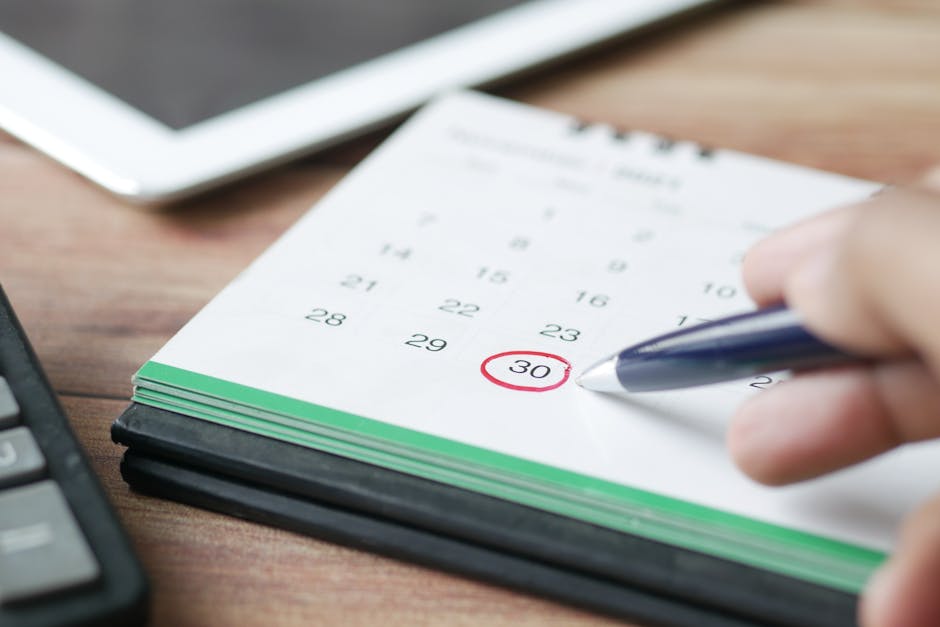
Connect Buffer to your LinkedIn author page and import the past 30 days of post data. Buffer’s analytics will surface your top three publishing windows—typically Tuesday 9 am, Thursday 12 pm, and Friday 3 pm. Schedule your DesignLumo graphics for these slots, and enable the team approval workflow to keep messaging consistent. Monitor the average click‑through rate; a benchmark of >1.8% signals successful timing. Buffer’s free trial makes this a beginner‑level tactic with high ROI for consistent visibility.
Hootsuite Bulk Upload for Carousel Campaigns
Prepare a multi‑page PDF carousel (5‑page) using DesignLumo or Canva. In Hootsuite Composer, choose “Upload Document”, select your LinkedIn Page, and set the publish date. Use Hootsuite’s CSV bulk composer to queue a week‑long launch series—each day a new carousel highlighting a chapter teaser. Track average view duration per slide; aim for >30 seconds to indicate deep engagement. This intermediate workflow saves ~2 hours of manual uploads and yields medium ROI for coordinated campaigns.
Zapier + LinkedIn API Auto‑Publish Countdown Graphics

Create a Zapier automation: Trigger = new design file saved in a DesignLumo folder (via webhook). Action = LinkedIn Share Update API, mapping the file URL, a pre‑written caption, and hashtags (#BookLaunch, #Author). Test in LinkedIn’s sandbox to stay within the 20‑post‑per‑day limit. This setup automatically publishes daily countdown graphics during a launch week, eliminating manual uploads and freeing ~2 hours weekly. Though advanced, the ROI is high because it guarantees consistent posting cadence without human error.
3. Analytics & Optimization
Shield Analytics for Engagement Benchmarks
Install Shield on your LinkedIn author page. Pull post‑level data—likes, comments, shares, impressions—and compute Engagement Rate = (likes + comments + shares) / impressions. Set a benchmark of 8% for standalone graphics and 5% for carousel posts. Run weekly A/B tests by swapping CTA text generated in DesignLumo; record the impact on conversion clicks. Expect a 15% lift after three test cycles. Shield’s granular reporting makes this an intermediate tactic with high ROI for data‑driven refinement.
LinkedIn Page Insights for Follower Growth
Use LinkedIn’s native Page Insights to monitor organic reach of each graphic type—cover reveals, event flyers, job posting banners. Identify formats that consistently exceed 10 k reach and allocate 60% of your visual budget to them. Set a KPI of 5% month‑over‑month follower growth, and adjust your content mix quarterly based on the insights. This beginner‑friendly metric tracking helps you prioritize high‑performing assets for medium ROI.
Bitly + UTM Builder for Click‑Through Tracking

Generate a Bitly short link with UTM parameters (utm_source=linkedin&utm_medium=social&utm_campaign=booklaunch). Insert the link in the caption of your DesignLumo post. In Google Analytics, monitor sessions, goal completions (e.g., purchase), and bounce rate. Target at least 150 clicks per carousel post. Use Bitly’s hourly click data to fine‑tune posting times identified by Buffer. This beginner‑level tracking adds measurable attribution, delivering medium ROI by informing future content investments.
Before you go
- Batch‑create a month’s worth of graphics in DesignLumo, then schedule them with Buffer to maintain a steady posting rhythm.
- Leverage LinkedIn’s carousel format to showcase multiple review quotes; each slide should contain a single, bold testimonial for maximum impact.
- Always embed UTM‑tagged Bitly links in your captions; the combined data from Shield and Google Analytics reveals the true revenue lift from each visual.















Ready to create your first design?
Join thousands creating professional designs in seconds.
Create with DesignLumo
Related Resources
Valentine's Day Author Marketing & Design Playbook
Tactical guide for authors to boost sales and engagement with Valentine-themed assets.
Small Business Saturday Author Marketing Blueprint
Tactical guide for authors to boost Small Business Saturday sales with editable AI designs.
Author Marketing & Design Starter Blueprint
Tactical guide for authors to create launch graphics, event promos, and monetization assets.
Facebook Content Playbook for Authors
Tactical Facebook post, event, and ad ideas for authors to boost sales and engagement.
Must‑Have Email Design Tools for Authors
Tactical toolkit for creating high‑impact email graphics that sell books.
Holiday Marketing Blueprint for Authors & Writers
Step‑by‑step holiday design tactics to boost book sales, events, and author brand.