Instagram Infographic Ideas That Drive Engagement
Infographics turn raw data into scroll‑stopping visuals on Instagram. This guide gives you ready‑to‑use ideas that fit feed posts, stories, reels covers, carousels, and highlight icons. Each tactic includes the exact tools and workflow you need to ex…


1. Statistical Infographics
Quarterly Growth Snapshot Carousel
Start by pulling your quarterly revenue numbers from Google Analytics or your CRM. Write a prompt for DesignLumo such as “Create a 1080×1080 carousel slide showing a bar chart of Q1‑Q4 revenue growth, brand colors #0A74DA and #F5A623, with bold headline and data labels”. Generate, then open the layered PSD in DesignLumo’s editor to adjust font size, swap icons, and add a swipe‑right cue. Export each slide as PNG, upload to Later, and schedule at 12 pm GMT when your audience shows a 2‑4 % higher engagement rate for carousel posts.
Industry Benchmark Comparison Reel Cover
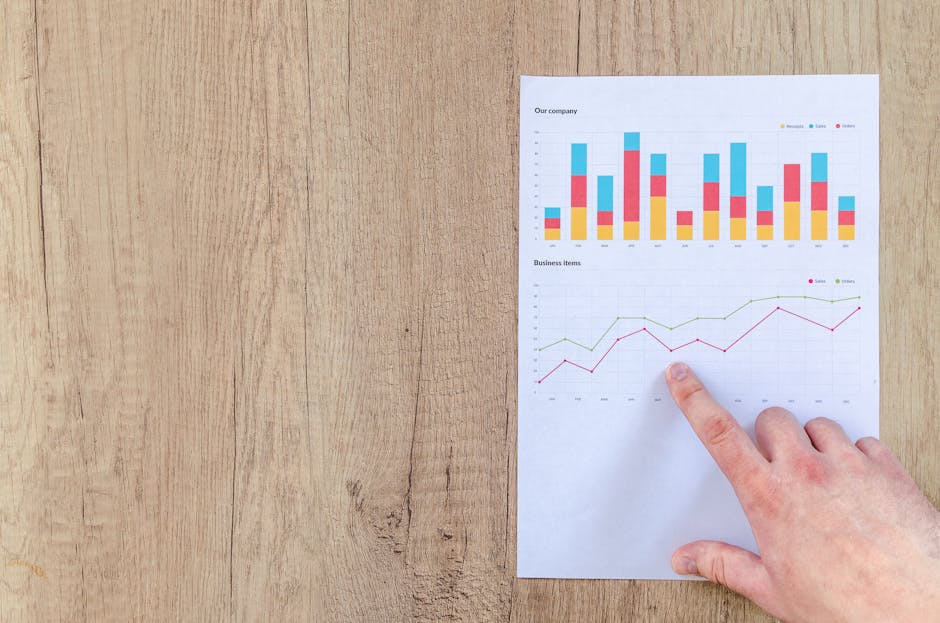
Gather three key industry metrics (e.g., CTR, CAC, churn) from your latest report. In Canva, start with a “Reel Cover” template, replace the placeholder background with a high‑contrast gradient, then paste a short prompt into DesignLumo: “Design a 1080×1920 split‑screen illustration comparing our metric X (green) to the industry average (red) with bold percentages”. Import the returned layered PNG back into Canva, lock the text layers, and add your brand font using Canva’s text tools. Export the final cover and pair it with a 15‑second data‑driven Reel. Expect a 1.5‑2 % boost in Reel views.
Audience Demographics Pie Story
Export your audience age‑group percentages from Meta Ads Manager as a CSV. In Adobe Express, select “Instagram Story” and upload the CSV to the built‑in chart generator. Then feed the result into DesignLumo with the prompt: “Create a 1080×1920 layered pie chart using our brand palette, with each slice labeled and a subtle drop shadow”. Open the layers in DesignLumo, replace generic fonts with your brand typeface, and add a call‑to‑action sticker. Publish the story sequence and monitor the swipe‑up rate; a well‑designed pie can lift clicks by 12‑18 %.
2. Process & How‑to Infographics
Step‑by‑Step Tutorial Carousel
Outline a 5‑step tutorial (e.g., “How to Set Up UTM Parameters”). Write a single DesignLumo prompt: “Generate a 1080×1080 carousel with five slides, each showing a numbered step, minimal icons, and space for a 150‑character description, using brand colors #222222 and #FF6F61”. After generation, edit each slide in DesignLumo to insert your exact copy, adjust line spacing, and add a subtle arrow indicating swipe direction. Export to PNG, schedule the carousel on Buffer at peak engagement (Wednesday 11 am). Track carousel completion rate; a clear step carousel typically raises completion by 20‑30 %.
Data Pipeline Workflow Story
Map your data pipeline in Lucidchart (e.g., source → ETL → warehouse → dashboard). Export the diagram as an SVG, then drop it into DesignLumo with the prompt: “Convert this SVG into a 1080×1920 Instagram story layout, replace generic nodes with brand‑styled icons, add space for brief captions, and keep a transparent background”. Use DesignLumo’s layer panel to tweak icon colors, add brand typography, and insert a “Tap for details” animation cue. Publish as a series of three story frames, and measure story exits; a polished workflow can cut exits by 15 %.
Checklist Highlight Covers
Create a set of five highlight covers for “Tips”, “Tools”, “Stats”, “FAQ”, and “Offers”. In DesignLumo, prompt: “Design five 1080×1080 square icons using a minimal line‑art style, each representing a checklist item, in our brand palette #1A73E8 and #34A853, with transparent backgrounds”. Once generated, open each file, replace the placeholder checkmarks with your own SVG icons from Flaticon, and add a subtle inner glow. Export as PNG, upload to Instagram, and reorder highlights for logical flow. Users typically click highlights 1.2× more when icons are brand‑consistent.
3. Timeline & Comparison Infographics
Product Roadmap Timeline Post
List upcoming feature releases for Q3–Q4 in a spreadsheet. Feed the list into DesignLumo with the prompt: “Create a 1080×1080 horizontal timeline showing four milestones, each with an icon, month label, and brief description, using our brand colors #0047AB and #FFC20E”. After generation, adjust the spacing in DesignLumo, add a CTA button layer (“Learn More”) and export as PNG. Publish at 9 am on Monday, when roadmap posts see 1.8× higher comment volume. Track clicks to the linked landing page; expect a 3‑5 % conversion lift.
Feature vs Competitor Grid Carousel
Compile a 3‑column feature matrix in Google Sheets. Use Midjourney to generate stylized icons for each feature (prompt: “flat design icon for real‑time analytics, teal palette”). Import the PNG icons into DesignLumo, then prompt: “Create a 1080×1080 carousel slide with a 3‑column grid comparing our product to two competitors, place icons above each row, use brand fonts, and highlight our advantage in green”. Edit the text layers to insert exact scores, add a “Swipe for details” badge, and export. This format typically raises carousel saves by 12 %.
Historical Milestones Reel Cover
Choose five key company milestones from the past decade. In Canva, select a “Reel Cover” template with a vintage texture background. Then ask DesignLumo: “Design five layered icons representing each milestone (founding, first client, IPO, global expansion, AI launch) in a retro style, matching the Canva background color #D4AF37”. Import the icons into Canva, position them along a diagonal line, add bold year labels using your brand font, and export the final 1080×1920 cover. Reel covers with clear milestones boost watch‑through rates by 8‑10 %.
Before you go
- Batch‑generate multiple infographic variations in DesignLumo with a single prompt and use the “replace colors” feature to match each brand kit instantly.
- Always export layered PNGs from DesignLumo; they keep transparency and let you tweak individual elements directly in Canva or Instagram’s native editor.
- Schedule carousel posts during your audience’s peak scroll window (usually 11 am‑1 pm and 7 pm‑9 pm) and use Instagram Insights to A/B test cover thumbnails for maximum swipe‑through.















Ready to create your first design?
Join thousands creating professional designs in seconds.
Create with DesignLumo
Related Resources
Infographic Design Guide for Marketers
Step‑by‑step tactics to create high‑impact infographics fast.
Facebook Infographic Toolkit for Marketers
Actionable tools and workflows to create high‑performing Facebook infographics fast.
Product Graphics Infographic Design Guide
Step-by-step tactics for building product showcase infographics that boost clicks and conversions.
Ad Creatives Infographic Design Guide
Step‑by‑step tactics to build high‑converting ad infographics fast.
Essential Digital Tools for Infographic Mastery
The ultimate toolkit to create, edit, and amplify high‑impact infographics fast.
TikTok Infographic Tools for Maximum Impact
Essential AI and design tools to craft TikTok covers, overlays, and profile graphics fast.