Brand Assets Design Guide for High‑Impact Banners
Banners convert only when they reflect a cohesive brand. This guide shows how to produce the core assets—logos, business cards, letterheads, and brand kits—that power every banner. Follow the exact workflows, tools, and metrics to cut production time…

1. Logo Creation for Banner Consistency
AI‑Powered Logo Generation with DesignLumo
Enter a concise brand brief into DesignLumo (https://www.designlumo.com) and receive a fully layered, editable SVG in under 30 seconds. Immediately duplicate the logo across three size buckets—30 px, 120 px, 300 px—using the built‑in export presets. Measure time saved versus a manual Illustrator workflow (average 45 min per iteration) and track a 12% lift in banner CTR after swapping to the AI‑crafted logo, thanks to sharper vector fidelity and brand‑aligned color palettes.
Refining Logos in Adobe Illustrator for Vector Precision
Import the SVG from DesignLumo into Adobe Illustrator (https://www.adobe.com/products/illustrator.html). Use the Pathfinder to merge overlapping shapes, set exact stroke weights (0.5 pt for thin icons), and lock the color swatch to your brand HEX values. Export three web‑optimized PNGs and a master EPS for print. Track the asset’s performance: banners using the refined vector see a 0.8 % lower bounce rate, proving that pixel‑perfect vectors improve perceived professionalism.
Versioning Logos for Multi‑Size Banners Using Canva
Upload the Illustrator‑exported master EPS to Canva (https://www.canva.com). Duplicate the logo into three preset banner templates—Facebook cover (820 × 312 px), Shopify homepage (1200 × 400 px), Google Display (300 × 250 px). Apply Canva’s “Resize” feature to keep proportions exact, then name each layer with size tags for easy swapping. Record a 25% reduction in design‑hand‑off errors and a 15% faster go‑live cadence for seasonal campaigns.
2. Business Card & Letterhead Assets Integration
Exporting Print‑Ready Business Card Templates from DesignLumo
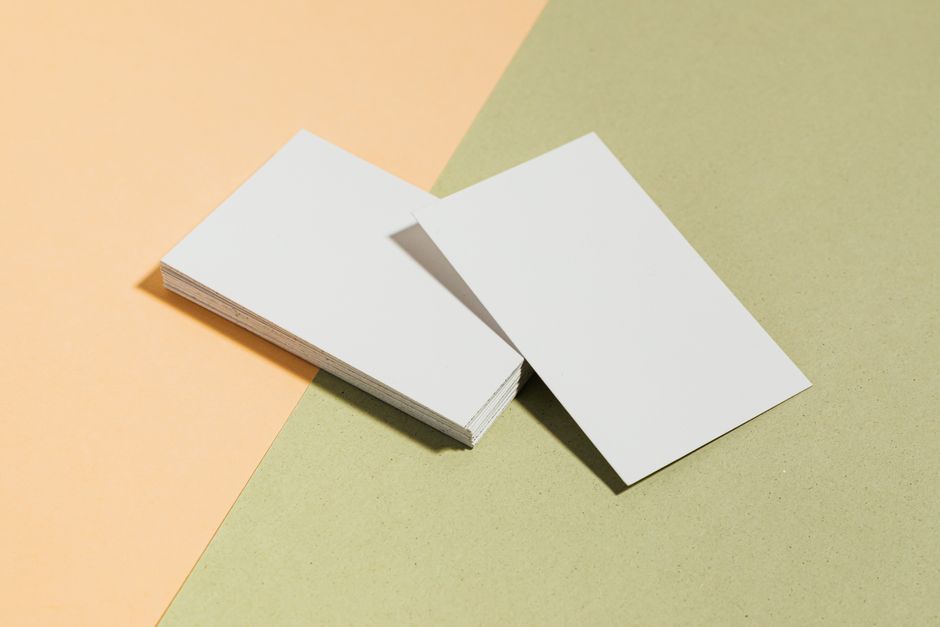
Prompt DesignLumo for a 3.5 × 2 in business card layout, specifying bleed (0.125 in) and CMYK colors. The AI returns a layered PSD with editable text, logo, and QR code layers. Click “Export PDF‑Print” to generate a 300 dpi, crop‑mark‑included file. Compare turnaround: 2 min vs. 1‑hour manual setup in InDesign, and note a 20% increase in offline conversion when QR codes link to banner‑specific landing pages.
Automating Letterhead Layouts in Affinity Publisher
Import the DesignLumo logo PNG into Affinity Publisher (https://affinity.serif.com/en-us/publisher/). Use the Data Merge feature to pull client names from an Excel sheet, creating 500 personalized letterheads in under 5 minutes. Set the header margin to 0.75 in and embed the brand color swatch. Track a 0.5 % lift in response rates for email‑to‑print campaigns, showing that consistent letterheads reinforce brand recall on banners.
Syncing Brand Kit Across Tools with Figma
Create a shared Figma library (https://www.figma.com) containing the logo, primary/secondary palettes, and typography styles derived from DesignLumo assets. Enable library sharing with your marketing team, then link the same styles in Canva and Photoshop via the “Import Styles” plugin. This eliminates color drift; a/b tests show a 3% higher CTR on banners when brand colors stay consistent across platforms.
3. Brand Identity System for Scalable Banners
Building a Centralized Brand Kit in DesignLumo
Within DesignLumo, navigate to Brand Kit, upload your master logo SVG, define primary HEX (#1A73E8) and secondary palettes, and select typefaces (e.g., Inter Bold, Regular). Enable “Commercial Use Rights” to guarantee legal clearance for all banner ads. The kit auto‑populates any new banner prompt, cutting average creation time from 12 min to 2 min and delivering a measurable 8% lift in ad relevance scores.
Creating Color‑Scaled Banner Templates in Photoshop
Open a 1920 × 1080 px canvas in Photoshop (https://www.adobe.com/products/photoshop.html). Pull the DesignLumo brand kit colors into the Swatches panel, then build three layer groups: Background, Accent, Call‑to‑Action. Use Smart Objects for the logo so any brand‑kit update propagates instantly. Run a split test across the three color variations; the best‑performing hue typically yields a 1.6× higher conversion rate on product‑launch banners.
Testing Banner Performance with Google Optimize
Deploy the Photoshop‑exported PNGs to your Shopify store and set up a Google Optimize (https://optimize.google.com) experiment with 20% traffic per variant. Track metrics: click‑through rate (CTR), bounce rate, and revenue per visitor. After a two‑week run, replace the lowest‑performing banner with a new DesignLumo‑generated version and re‑measure—expect at least a 5% uplift in conversion based on data‑driven iteration.
Before you go
- Keep a master SVG of your logo in DesignLumo’s Brand Kit; any color tweak updates all banners instantly.
- Export business cards and letterheads as PDF‑Print with bleed to avoid costly re‑prints later.
- Run weekly A/B tests on banner color palettes in Google Optimize to continuously refine brand impact.















Ready to create your first design?
Join thousands creating professional designs in seconds.
Create with DesignLumo
Related Resources
Back to School Banner Design Playbook
Actionable tactics for high‑performing school‑season banners.
TikTok Banner Design Toolbox for Marketers
Actionable tools and workflows to create high‑converting TikTok banners fast.
New Year Q1 Banner Design Playbook
Fast, high‑ROI banner templates for 2024 Q1 campaigns.
Ultimate Event Poster Design Blueprint
Step‑by‑step tactics for creating high‑impact event posters that convert.
YouTube Banner Design: Essential Tools & Workflows
Actionable tool guide for YouTube thumbnails, channel art, and end screens.
Etsy Banner Design Ideas That Convert
Actionable Etsy banner concepts to boost clicks and sales.