YouTube Design Ideas for Production Agencies
Video production agencies need repeatable, high‑performing graphics to keep clients’ channels growing. This guide delivers concrete, AI‑driven ideas you can implement today. Each tactic includes exact tools, step‑by‑step workflows, and measurable ROI…


1. High‑Impact Thumbnail Strategies
AI‑Powered Face‑Crop & Text Overlay
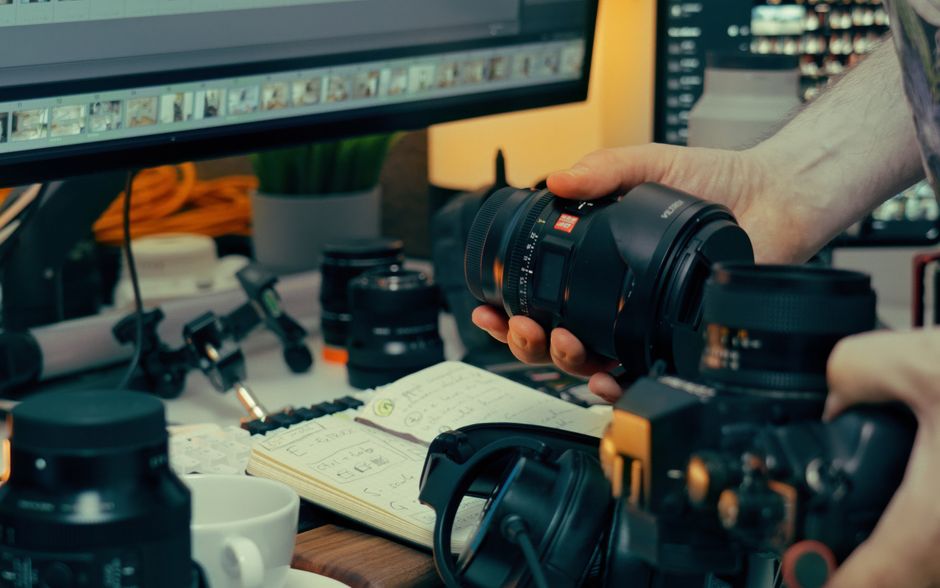
Start with the raw video frame in Descript, export a 1280×720 still, then feed it to DesignLumo with a prompt: ‘Create a bold thumbnail, crop the main face to 45% width, add large white headline with black outline.’ Lumo returns a fully layered PSD in seconds. Open the file in Photoshop to fine‑tune, then run an A/B test in TubeBuddy for CTR. Track lift over 1,000 impressions; aim for a 5‑10% increase. This workflow cuts thumbnail production from 30 minutes to under 5.
Data‑Driven Color Contrast Testing
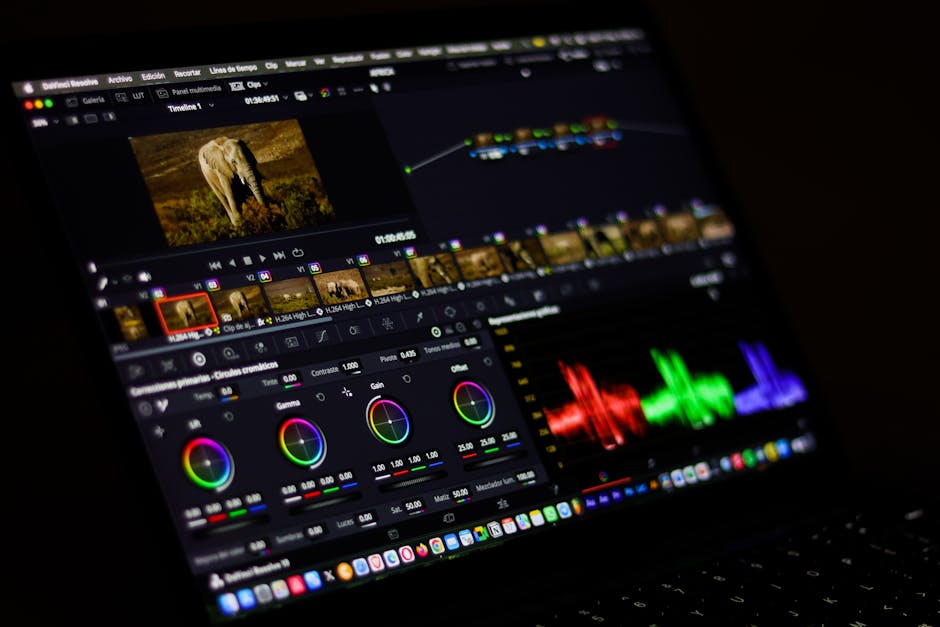
Use Canva’s Color Palette Generator to extract dominant hues from the video’s key scene. Then, in DesignLumo, prompt for a thumbnail that swaps the background to the complementary color while keeping the original text. Export PNGs and upload both versions to VidIQ’s “Thumbnail Split Test” feature. Monitor click‑through rate (CTR) for 48 hours; a 3% uplift justifies the color swap. Record the winning palette in a shared Google Sheet for future client briefs, ensuring repeatable success.
Template‑Free Dynamic Scene Capture
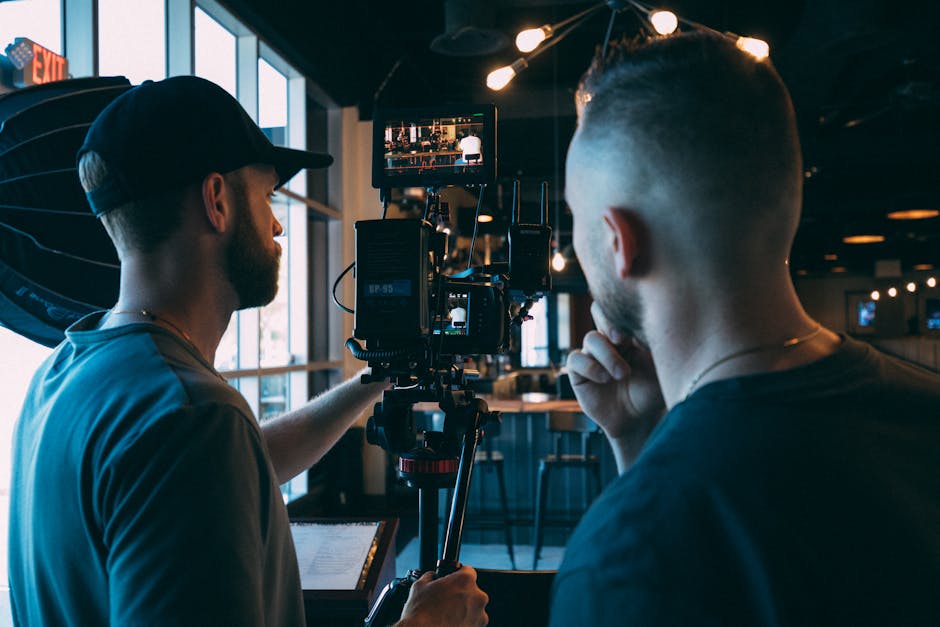
Instead of static templates, capture a 3‑second motion blur from the climax of the video using Adobe Premiere’s Export Frame > JPEG with ‘Maximum Bit Depth.’ Upload the frame to Midjourney with the prompt: ‘enhance motion blur, add neon outline, keep original colors.’ Generate three variations, select the highest‑scoring one via Midjourney’s V4 rating, then import into DesignLumo to add editable headline layers. Publish the thumbnail and compare CTR against the previous static version; aim for at least a 4% lift. This method leverages AI creativity while staying brand‑consistent.
2. Channel Branding Assets
Automated Channel Art for Multiple Devices

Create a master 2560×1440 canvas in DesignLumo with the prompt: ‘YouTube channel banner for tech agency, bold teal background, space for logo and tagline.’ Lumo outputs layered files. Use its built‑in export presets to generate safe‑zone (1546×423) and TV‑safe (2560×1440) versions automatically. Upload each size via YouTube Studio and verify via YouTube’s ‘Check How It Looks’ tool. Measure watch‑time per session before and after the refresh; a 2‑3% increase signals brand cohesion payoff.
Consistent Series Icon Packs
For recurring series, generate a 5‑icon pack in Adobe Express. Start with a base shape (circle) and a color scheme from the client’s brand kit. Use Express’s ‘AI Text to Image’ to create unique symbols for each episode theme, then export as SVG. Import the SVGs into DesignLumo, add editable label layers, and save as a master template. Deploy the icons across thumbnails, community posts, and end‑screens. Track episode view‑through rates; a 1‑2% lift validates the visual continuity.
Brand‑Kit Sync with DesignLumo

Upload the client’s brand kit (fonts, hex colors, logo) directly into DesignLumo’s Brand Kit manager. Once saved, any new prompt automatically respects those assets, eliminating manual re‑entry. For example, ask Lumo: ‘Create a YouTube community tab banner using brand colors #1A73E8 and #34A853, with the uploaded logo in the lower right.’ Export the layered PSD and instantly push to YouTube. Compare design turnaround time before (average 2 hrs) and after (under 15 min) to quantify efficiency gains.
3. Community Tab Engagement Graphics
Poll‑Boosting Mini‑Banner Creator
Use Canva’s ‘Custom Dimensions’ to set 800×200 for a poll banner. Insert a bold question, then pull a relevant still from the upcoming video. In DesignLumo, prompt: ‘Add two contrasting call‑to‑action buttons, “Option A” and “Option B,” using brand colors.’ Export PNG, upload to YouTube Community, and attach the poll. Monitor poll participation rates; a 15% higher response versus text‑only polls indicates design impact. Record the template for reuse across clients.
Premiere Countdown Graphic
Design a 1080×1080 countdown graphic in Adobe Express: select ‘Animated Countdown’, set the premiere date, and apply the client’s font. Export as GIF, then import into DesignLumo to add an overlay of the video’s thumbnail, keeping layers editable. Post the GIF on the Community tab 24 hours before launch. Track premiere live‑view numbers; a 7‑10% bump versus baseline confirms the visual teaser’s effectiveness.
Behind‑the‑Scenes Collage Generator

Gather 5‑6 raw behind‑the‑scenes photos from the shoot. Upload to DesignLumo with the prompt: ‘Create a 4‑by‑2 grid collage, overlay each image with a semi‑transparent brand color tint, add bold “BTS” label.’ Lumo returns a layered PSD where each photo can be swapped instantly for future shoots. Publish the collage on the Community tab and pair it with a short teaser clip. Measure comment volume; a 20% rise versus standard posts shows audience appetite for polished BTS graphics.
4. End Screen & CTA Designs
Clickable End‑Screen Button Templates

Start with a 1920×1080 canvas in DesignLumo, prompt: ‘Design three end‑screen buttons—Subscribe, Watch Next, Visit Site—using brand colors, rounded corners, and drop shadow.’ Export as PNG with transparent background. In YouTube Studio, add each PNG as a “Custom End Screen Element,” linking to the appropriate URL. Track end‑screen click‑through rates; an uplift from 1.2% to 2.5% validates the custom design versus YouTube’s default buttons.
Dynamic Video Playlist Thumbnails
Use Midjourney to generate a set of three cohesive images that represent the playlist’s theme (e.g., ‘urban tech montage’). Import the images into DesignLumo, add a bold playlist title overlay, and save each as a layered PNG. Upload the thumbnails to YouTube’s playlist editor and enable the “Show playlist thumbnail” option. Compare average watch‑time per video before and after; a 3‑5% increase indicates stronger visual hooks.
AI‑Generated Sponsor Badge Overlays
Ask DesignLumo: ‘Create a circular sponsor badge with brand logo, gold rim, and “Sponsored by XYZ” text, 150 px diameter.’ Export the PSD, then place the badge in the corner of the final video in Premiere Pro using the Essential Graphics panel. Enable motion tracking if the shot moves. Measure sponsor click‑throughs from the video description; a 1‑2% rise versus no badge demonstrates the overlay’s credibility boost.
Before you go
- Batch‑generate 10‑15 thumbnail variants in DesignLumo, then use TubeBuddy’s split‑test to instantly identify the top performer.
- Keep a shared Google Sheet of brand‑kit parameters (fonts, hex codes) to feed AI prompts consistently across all tools.
- Leverage YouTube’s “Viewer Retention” report to correlate specific graphic changes (e.g., color contrast) with retention spikes, proving ROI to clients.















Ready to create your first design?
Join thousands creating professional designs in seconds.
Create with DesignLumo
Related Resources
Event Poster Design Playbook for Video Agencies
Step‑by‑step AI‑driven guide to create high‑impact event posters for video production agencies.
Spooky Video Agency Marketing Playbook
Actionable Halloween tactics for video agencies to boost leads and conversions.
TikTok Content Ideas to Power Video Agency Growth
Tactical TikTok concepts for agencies to boost thumbnails, promos, and client engagement.
Print Design Playbook for Video Agencies
Tactical guide to flyers, brochures, menus, and print assets for video production agencies.
Social Media Post Design Blueprint for Video Agencies
Tactical guide to create high-convert social posts for video production firms.
Video Agency Brand Assets Blueprint
Step-by-step tactics to craft logos, cards, letterheads, and identity systems for video production agencies.