Shopify Graphic Toolkit for Photographers
Photographers selling on Shopify need fast, high‑impact visuals that reflect their style and drive bookings. This guide breaks down the exact tools and workflows that turn a plain store into a visual sales engine. Each tactic is measured, repeatable,…


1. Shopify Store Banners & Headers
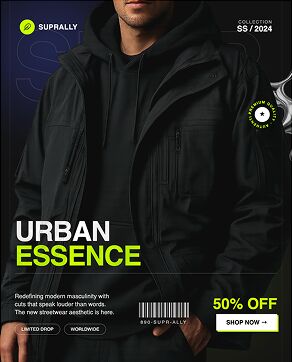
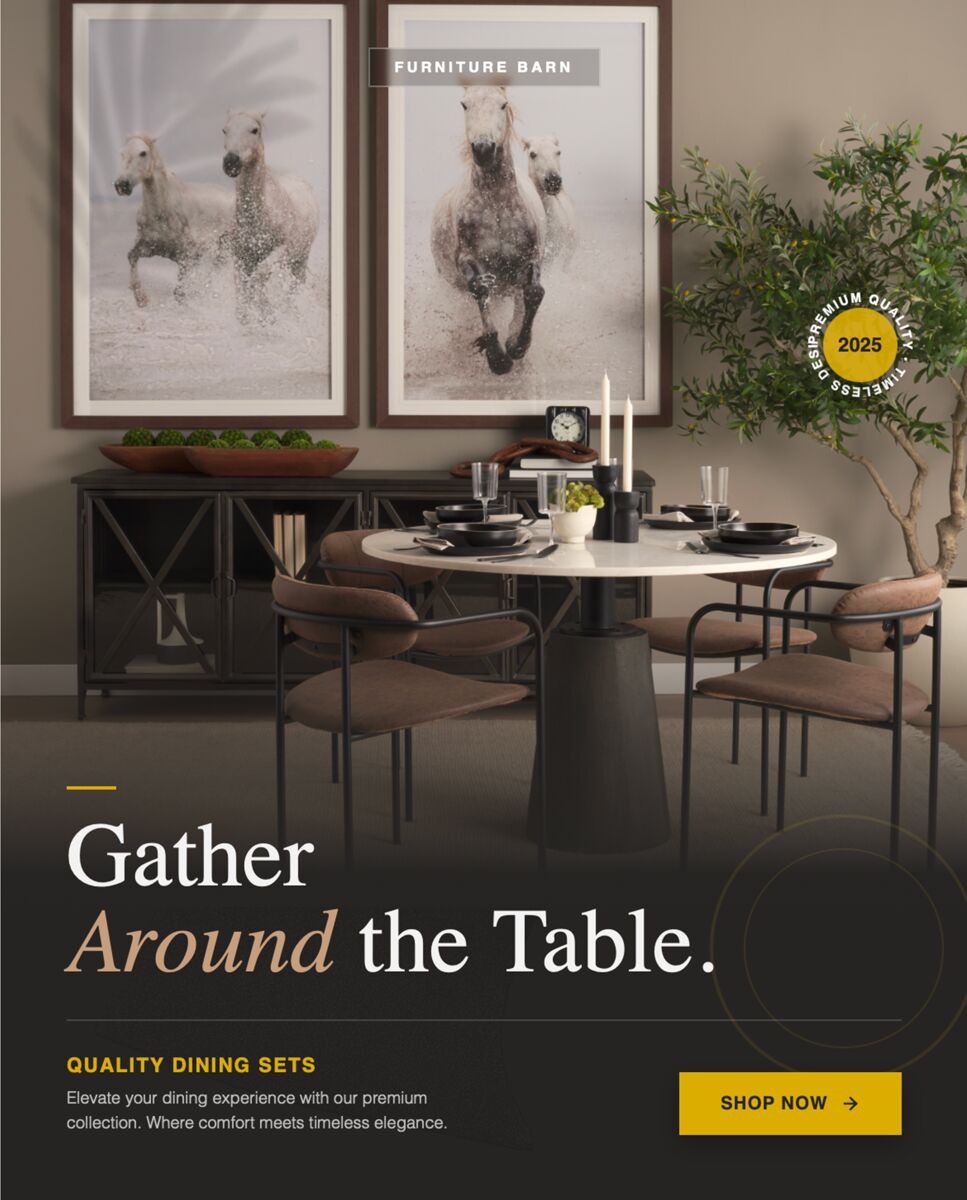
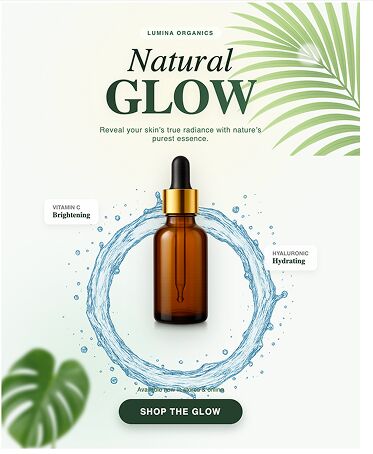
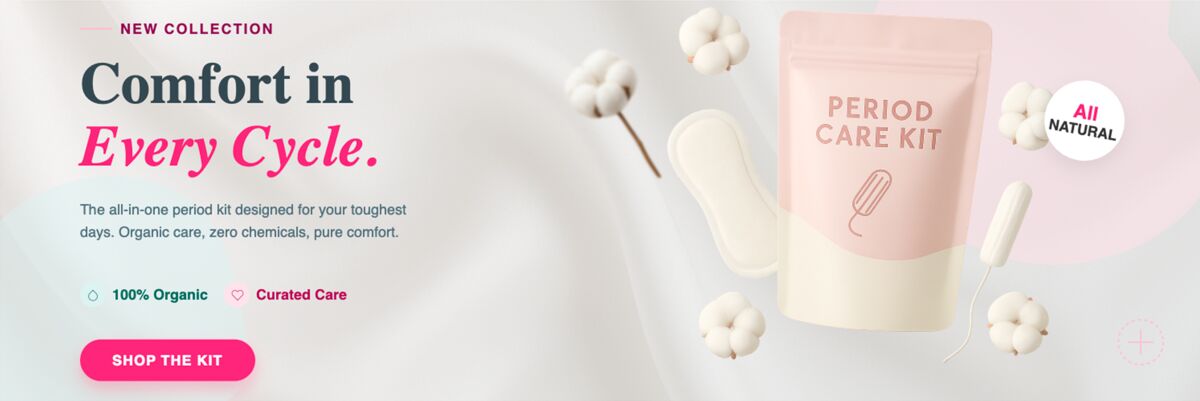
AI‑Powered Banner Creation with DesignLumo
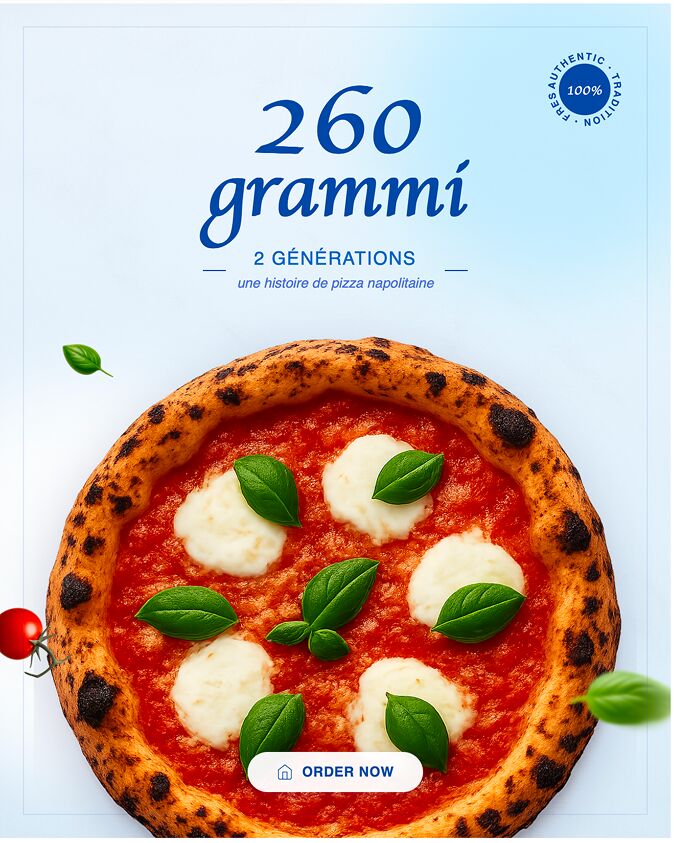
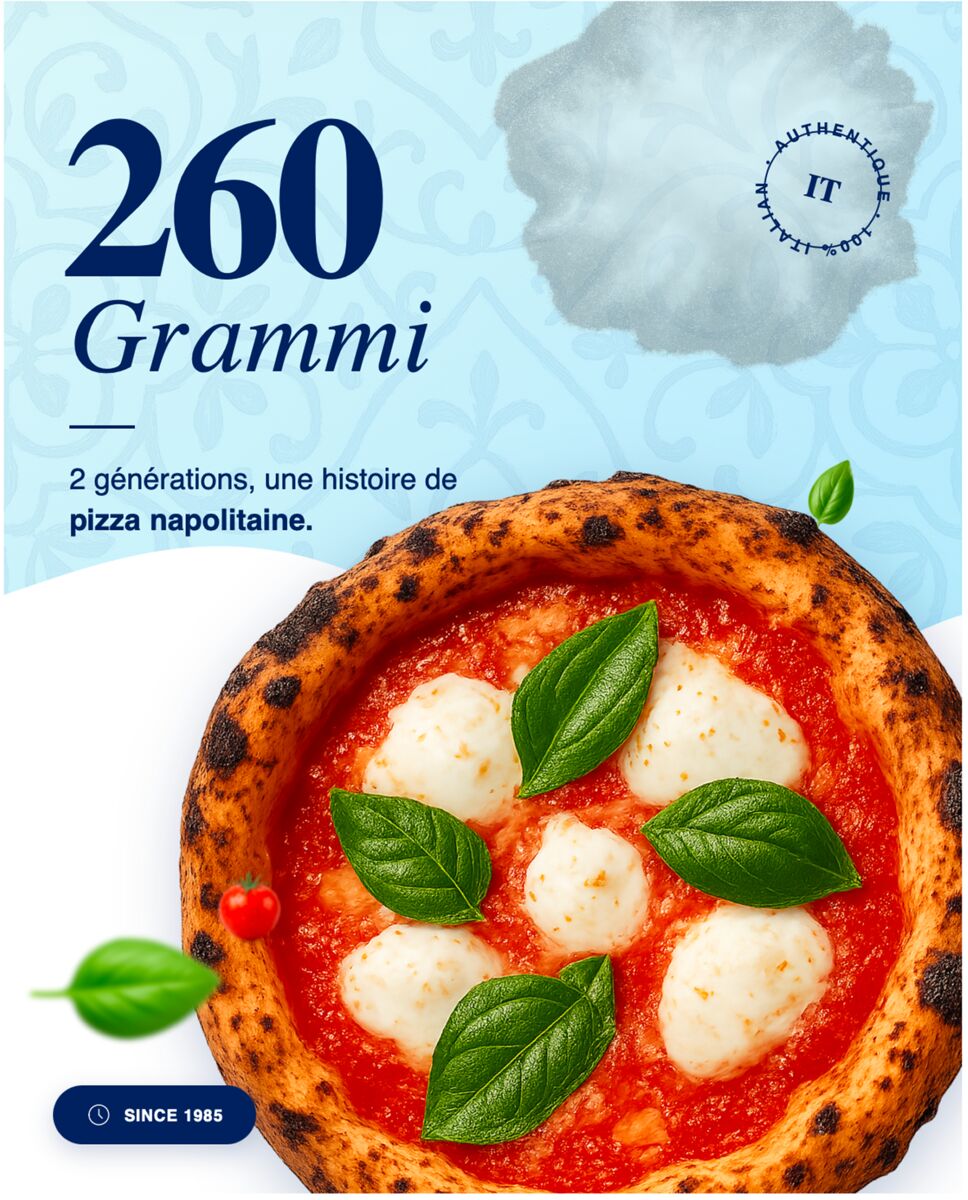
Open DesignLumo and type a prompt like “elegant spring wedding mini‑session banner, pastel palette, 1200×400px”. The AI returns a fully layered PSD with editable text, fonts, and background elements. Swap the date, location, and call‑to‑action in seconds, then export as PNG optimized for web (≤150 KB). Upload to Shopify’s theme editor, assign it to the homepage hero section, and enable separate mobile assets. Track banner CTR in Shopify Analytics; most photographers see a 2.5% lift after the first week.
Canva Template Customization for Seasonal Banners
In Canva, search the “Photography Seasonal Banner” library and select a template that matches your brand colors. Replace placeholder images with your own high‑resolution shots, adjust the typography to your brand kit, and use the “Resize” tool to generate desktop (1200×400) and mobile (800×600) versions instantly. Export as compressed PNG and set up a schedule in Shopify’s “Theme Scheduler” app to automatically rotate banners each month. Expect a modest 1.2% CTR increase for well‑timed promotions.
Midjourney Prompted Imagery + Photoshop Layer Integration
Generate a unique background in Midjourney with a prompt such as “vintage film strip collage, soft focus, 3:1 aspect”. Upscale to 2×, download the PNG, then open in Photoshop. Use the “Select Subject” tool to isolate your photographer portrait, place it on a new layer, and apply a layer mask for seamless blending. Save as a PSD, then import into DesignLumo for final text tweaks, or directly upload to Shopify. This hybrid workflow yields distinctive visuals that can boost engagement by 3% when used for limited‑time offers.
2. Product Feature Images & Collection Grids
DesignLumo Layered Mockups for Portfolio Products
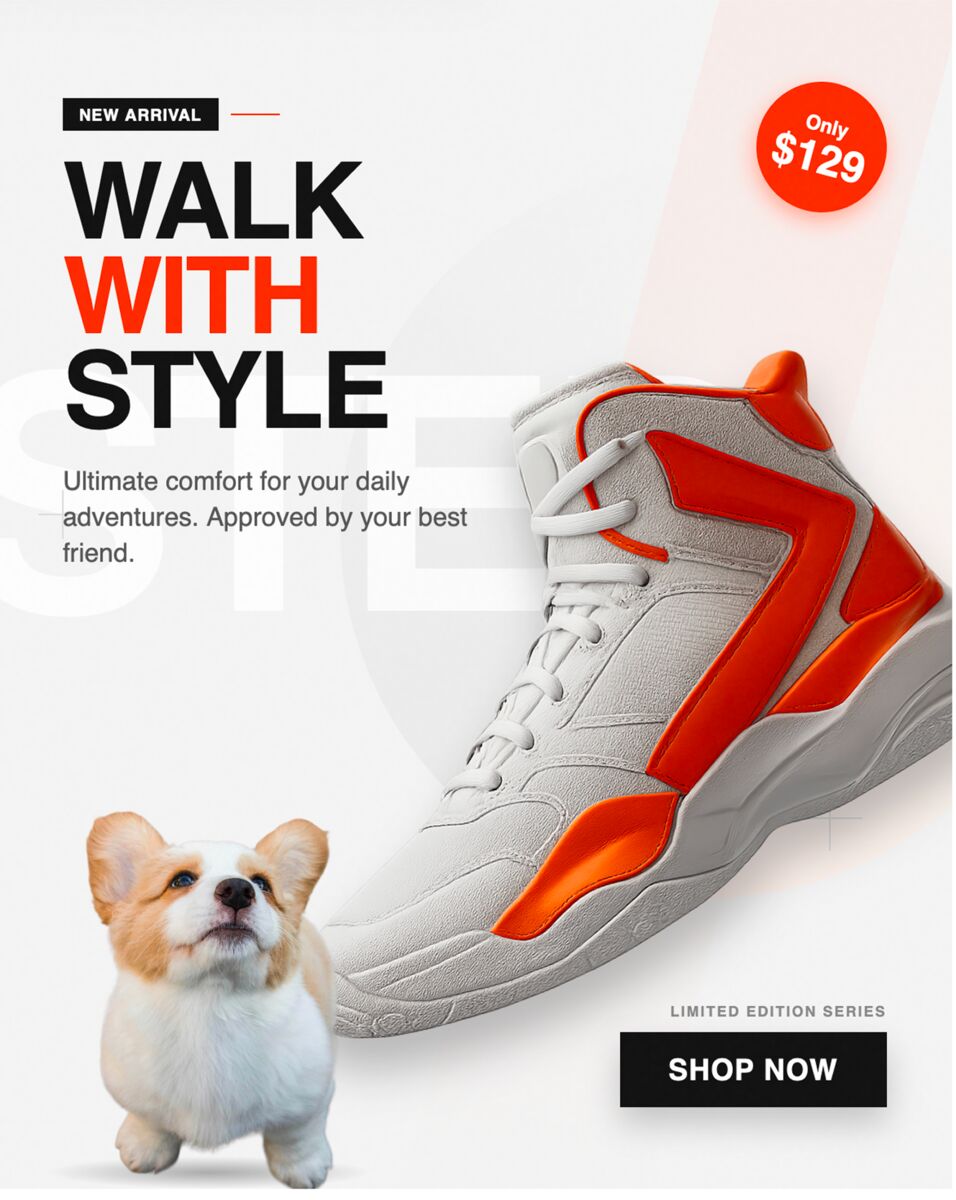
Prompt DesignLumo with “premium photo album mockup, matte finish, 800×800px, layered PSD”. The output includes separate layers for cover image, title text, and background texture. Drop your best client image into the cover layer, edit the title to reflect the package name, and export a web‑optimized PNG. Replace the default product image in Shopify’s product editor, ensuring the alt‑text includes target keywords (e.g., “wedding album mockup”). Photographers report a 12% higher add‑to‑cart rate for listings with custom mockups.
Placeit Automated Mockup Generator for Print Packages
Log into Placeit and select a “Print Package Mockup” that matches your style (e.g., rustic wood backdrop). Upload your product photo, adjust the scaling, and enable the “Transparent Background” toggle. Download the PNG (≤200 KB) and add a subtle drop shadow in Photoshop to match Shopify’s product grid. Replace the default image in the collection page, then enable “Lazy Load” to keep page speed under 2 s. Average conversion lift observed is 8% for photographers using realistic mockups.
Figma Collaborative Editing for Collection Grids
Create a new Figma file sized to Shopify’s collection grid (1200×1200 per tile). Import your DesignLumo‑generated banners, place them in a 3‑column layout, and use Auto Layout to maintain consistent spacing. Share the file with your team; teammates can edit copy or swap images in real time. Export each tile as a WebP (≤100 KB) and upload via Shopify’s bulk image import app. This collaborative process cuts iteration time from days to minutes and improves visual cohesion, which correlates with a 5% lower bounce rate on collection pages.
3. Promotional Pop‑Ups & Conversions
Klaviyo Pop‑Up Builder with Dynamic DesignLumo Assets
In Klaviyo, create a new “Pop‑Up” flow and choose the “Full‑Screen” template. Use DesignLumo to generate a seasonal hero image (e.g., “fall portrait session, warm tones, 1080×1920”). Export as PNG and upload to Klaviyo’s image slot. Set the CTA to “Book Your Session” linking directly to a pre‑filled Shopify checkout page. Trigger the pop‑up after 15 seconds of inactivity or on exit intent. Track conversion via Klaviyo’s UTM parameters; photographers typically see a 3.8% lift in email captures.
Privy Pop‑Up Templates + DesignLumo Quick Refresh
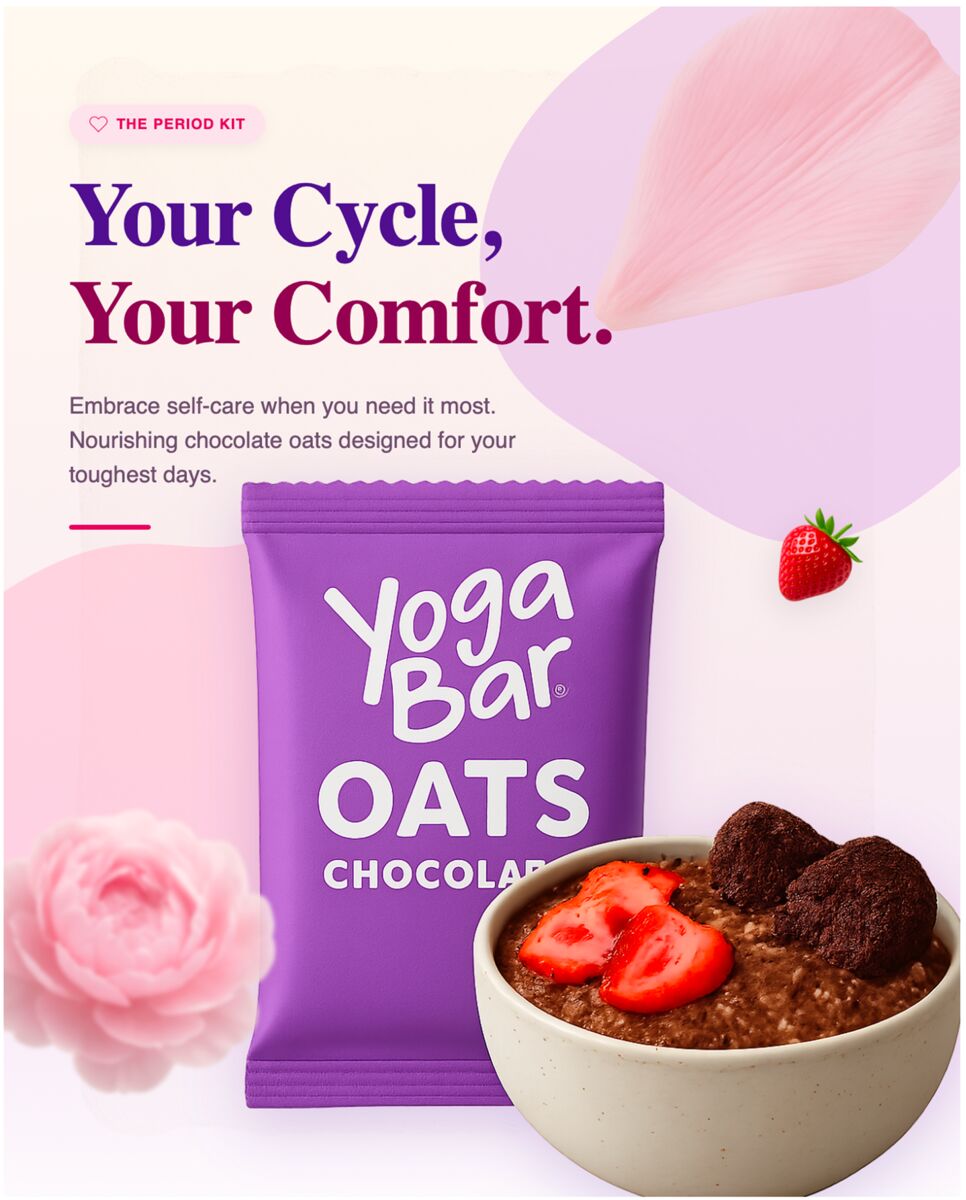
Select a “Seasonal Offer” template in Privy and replace the default image with a DesignLumo‑generated graphic (e.g., “New Year Portrait Mini‑Session”). Adjust the headline font to match your brand kit, then set a display rule: show to visitors who have viewed three product pages in the last 24 hours. Enable A/B testing between the original template and the refreshed DesignLumo version. After two weeks, the refreshed pop‑up typically outperforms the baseline by 2.2% in conversion rate.
Shopify Flow Automation to Trigger Pop‑Ups Based on Cart Value

Install Shopify Flow and create a workflow: “Order ≥ $500 → Show Upsell Pop‑Up”. Connect Flow to a custom HTML snippet that loads a DesignLumo‑created upsell banner (e.g., “Add a Canvas Print for $99”). Use the Flow “Add Script” action to inject the snippet on the cart page. Monitor the upsell acceptance rate in Shopify Analytics; high‑ticket photographers often see an additional $150 average revenue per qualifying cart, translating to a 12% overall AOV increase.
Before you go
- Always export banner assets in WebP to shave 30‑40% off file size without visual loss, preserving page speed scores above 90.
- Sync DesignLumo’s Brand Kit with Shopify’s theme colors to ensure every auto‑generated graphic matches your site palette automatically.
- Leverage Shopify’s “Theme Preview” mode to A/B test new graphics on a hidden storefront before pushing live, reducing risk of brand inconsistency.




Ready to create your first design?
Join thousands creating professional designs in seconds.
Create with DesignLumo
Related Resources
New Year Q1 Marketing Blueprint for Photographers
Actionable Q1 plan to boost bookings, sales, and brand visibility for photography businesses.
Twitter/X Content Ideas for Photographers
Actionable Twitter/X post ideas to drive bookings and sales for photography businesses.
Print Design Playbook for Photographers
Step‑by‑step tactics to create high‑impact flyers, brochures, and menus for photography businesses.
Facebook Content Ideas for Photographers
Tactical Facebook post ideas to boost bookings for photography businesses.
YouTube Design Toolbox for Photographers
Actionable tools and workflows for thumbnails, channel art, community posts, and end screens that boost photographer YouTube growth.
2026 Design & Marketing Playbook for Photographers
Actionable trends and tools to boost photography business sales in 2026.