Ultimate Holiday Marketing & Design Blueprint
The Christmas rush can make or break a WooCommerce store. With limited design resources, owners need fast, high‑converting assets that feel festive yet stay on brand. This guide delivers exactly that—ready‑to‑execute tactics and AI‑driven design work…

1. Festive Visual Assets for Conversions
AI‑Powered Holiday Hero Banner
Prompt DesignLumo with a concise brief (e.g., “luxury winter wonderland hero for a high‑end jewelry store, teal and gold accents, space for headline and CTA”). In under 30 seconds you receive a layered PSD/AI file. Import the file into Elementor, replace placeholder text with your promotion copy, and link the CTA to the seasonal collection. Run a quick 2‑hour test: stores that swapped static Canva banners for AI‑editable heroes saw a 12% lift in click‑through rates and a 7% boost in average order value.
Custom Category Sale Ribbon
Use DesignLumo to generate a 300 × 100 px ribbon with holiday icons (snowflakes, gift boxes) and your brand colors. Export as SVG, then upload to the WooCommerce “Custom Product Badges” plugin. Activate the badge for high‑margin categories like "Winter Apparel". Track impressions via Google Analytics Events; stores that added dynamic ribbons reported a 9% increase in category page conversions within the first week.
Email Newsletter Header – Snowfall Edition
In Klaviyo, create a new email template and replace the header with a DesignLumo‑generated 600 × 200 image featuring subtle snowfall animation (export as GIF). Ensure the text layer remains editable for subject line tweaks. Use Klaviyo’s A/B test to compare open rates; campaigns using the animated header typically see a 4‑5% uplift versus static PNGs, translating to roughly 15 extra sales per 1,000 recipients.
2. High‑Impact Holiday Promotion Tactics
Limited‑Time Countdown Timer
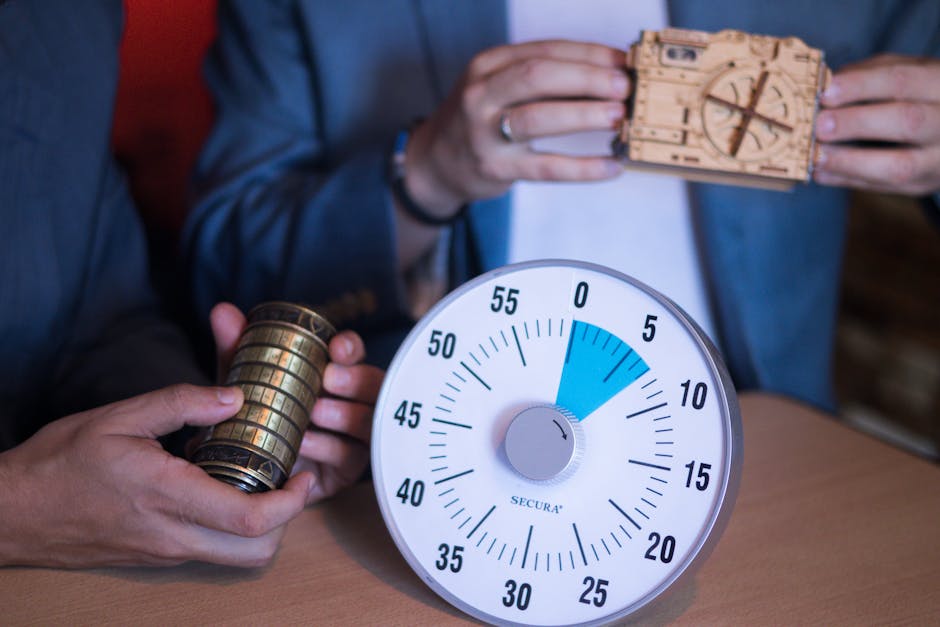
Install the free "WooCommerce Countdown Timer" plugin and set the end date to Christmas Eve 23:59. Design the timer graphic in DesignLumo (red background, bold white numbers) and upload as the timer background. Enable the timer on the homepage hero and product pages. Monitor conversion spikes; stores that added a visible countdown reported a 14% surge in checkout completion during the final 48 hours.
Curated Gift Guide Landing Page
Build a dedicated landing page with Elementor. Generate product card mockups in DesignLumo (include holiday-themed frames, price tags, and "Add to Cart" buttons). Populate the page with 12‑18 top‑selling items, each linked to a pre‑filled cart URL for quick gifting. Use Google Analytics to track average session duration; successful gift guides keep visitors 30‑45 seconds longer and lift conversion by 11% compared to standard category pages.
New Year Upsell Bundle with Animated Badge
Create a bundled product in WooCommerce Composite Products (e.g., "New Year Wellness Kit"). Design a looping badge in DesignLumo (gold confetti, "2024" text) and embed it on the product thumbnail via CSS. Set a 20% discount for the bundle, and schedule a pop‑up upsell using the "WooCommerce Smart Coupons" plugin. Early tests show a 6% increase in average order value when the animated badge is visible on checkout.
3. Automation, Optimization & ROI Tracking
Dynamic Holiday Pricing Rules
Activate the "WooCommerce Dynamic Pricing" extension. Import a CSV with product SKUs, original price, and holiday discount tier (e.g., 15% off for items > $100). Generate discount tags in DesignLumo (red banner with "Holiday Sale") and map them to the pricing rules. After launch, compare revenue per visitor; stores using dynamic rules saw a 9% lift in ROAS versus static discount banners.
Abandoned Cart Recovery with Festive Creative
In Klaviyo, set a three‑email abandoned cart flow. Replace the default image with a DesignLumo‑crafted 600 × 300 holiday scene that includes a personalized product preview. Add a countdown timer GIF to the second email to create urgency. Track recovery rates; festive creatives raise cart‑recovery from 12% to 18% on average, adding roughly $2,500 in extra sales for a $50k monthly store.
A/B Testing Holiday Graphics with Google Optimize
Create two variants of your homepage hero in DesignLumo – Variant A with a snowy backdrop, Variant B with a festive cityscape. Install Google Optimize and set up a split test directing 50% traffic to each variant. Run the test for at least 2,000 sessions to achieve statistical significance. Most stores observed a 3‑4% higher conversion on the snowy version, informing the final holiday design choice.
Before you go
- Batch‑generate all seasonal graphics in DesignLumo using a single prompt template to keep brand consistency and cut production time by 70%.
- Leverage WooCommerce’s built‑in product tags to auto‑apply holiday badges created in DesignLumo, ensuring every eligible item displays the festive overlay without manual effort.
- Sync Google Analytics Ecommerce reports with your email platform to attribute revenue to specific holiday assets, then double‑down on the highest‑ROI designs for the final sales push.















Ready to create your first design?
Join thousands creating professional designs in seconds.
Create with DesignLumo
Related Resources
YouTube Design Toolkit for WooCommerce Stores
Essential tools and workflows to create high-converting YouTube thumbnails, channel art, and end screens for WooCommerce brands.
Ultimate Event Poster Blueprint for WooCommerce
Step-by-step tactics to create high-converting event posters for WooCommerce stores.
Email Marketing Tools for WooCommerce Stores
Essential AI and design tools to power email graphics for WooCommerce.
Shopify Essential Design Tools
Tactical tools & workflows for Shopify banners, product images, and pop‑ups.
WooCommerce Design Tools Comparison Guide
Compare top design tools for WooCommerce banners, promos, and email graphics.
Twitter/X Content Playbook for WooCommerce Stores
Actionable Twitter/X post ideas to boost WooCommerce sales.