Ultimate Launch Checklist for WooCommerce Campaigns
Launching a new promotion on a WooCommerce store demands flawless visuals, precise timing, and data‑driven tweaks. This checklist breaks the process into four actionable pillars so you never miss a critical step. Follow each tactic to turn seasonal s…

1. Visual Asset Creation
DesignLumo AI Banner Generator
Prompt DesignLumo (https://www.designlumo.com) with specific copy, brand colors, and dimensions (e.g., 1920x600 for homepage sliders). Within seconds you receive a layered PSD/AI file. Replace text, swap fonts, or adjust colors directly in Photoshop or the built‑in editor. Track performance by measuring click‑through rates (CTR) before and after implementation; aim for a 15‑20% lift. This eliminates the need for static Midjourney images and template hunting in Canva, giving you fully editable assets ready for any A/B test.
Canva Pro Template Customizer
Use Canva Pro's brand kit to store your WooCommerce logo, fonts, and color palette. Duplicate a pre‑made “Sale Banner” template, replace placeholder text with SKU‑specific offers, and export as PNG for quick uploads. Measure load speed impact; keep file size under 150 KB to maintain page load <2 seconds, preserving Google Core Web Vitals. This is ideal for rapid one‑off graphics when you lack AI prompt expertise, but remember Canva outputs flat images, not layered files.
Midjourney Seasonal GIFs + Photoshop
Generate a base image in Midjourney with a prompt like "vibrant spring sale, pastel palette, 1080x1080". Import the result into Photoshop, add motion frames using the Timeline panel, and export as a looping GIF under 500 KB. Use this for category banners where subtle animation boosts engagement by ~12% according to Shopify case studies. Validate file size with GTmetrix and fallback to a static PNG for slow connections.
2. Campaign Scheduling & Automation
WooCommerce Scheduler Plugin
Install the free "WooCommerce Scheduler" plugin. Create a new schedule, select the banner asset (uploaded via DesignLumo), set start/end dates, and assign it to a specific product category. Use the built‑in UTC conversion to ensure global launches hit the exact minute. Track activation timestamps in the WP‑Admin log and compare sales uplift within the scheduled window; target a minimum 10% revenue bump during the active period.
Mailchimp WooCommerce Integration
Connect Mailchimp to your store via the official plugin. Sync product collections, then build a campaign using the DesignLumo‑generated email header (editable in Mailchimp). Set automation triggers: cart abandonment, post‑purchase upsell, and a time‑based “Seasonal Sale” blast. Monitor open rates; aim for >25% and click‑through >4%. Use Mailchimp’s A/B split testing to compare two subject lines, allocating budget to the winner for the final send.
Buffer Social Auto‑Poster
Queue the same banner across Instagram, Facebook, and Pinterest using Buffer. Upload the layered PNG from DesignLumo, add platform‑specific copy, and schedule posts to align with the banner activation time. Enable UTM parameters (utm_source=buffer&utm_medium=social&utm_campaign=summer) to attribute traffic in Google Analytics. Aim for a 5‑10% lift in referral sessions from social during the campaign window.
3. Conversion Optimization
Countdown Timer Overlay
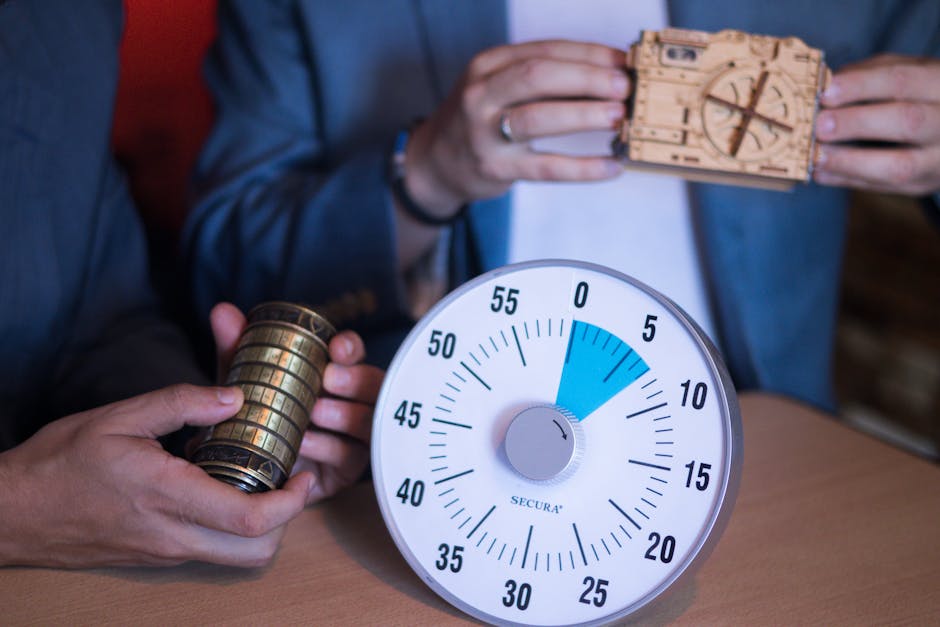
Add the "WooCommerce Countdown Timer" plugin to your product page. Configure it to display the DesignLumo‑styled timer graphic, syncing start/end timestamps with your scheduler. Set the timer to show hours, minutes, and seconds, creating urgency. Track conversion rate lift; a well‑executed timer typically adds 8‑12% more sales in the last 24 hours of a flash sale. Test two colors (brand red vs. orange) to see which drives higher add‑to‑cart rates.
Exit‑Intent Pop‑up with OptinMonster
Integrate OptinMonster (optinmonster.com) and create an exit‑intent pop‑up using the same DesignLumo banner for visual consistency. Offer a 10% coupon code tied to a unique discount ID. Set the trigger to fire after 5 seconds of mouse leave. Measure coupon redemption; a 3‑5% conversion from pop‑ups justifies the $29/mo cost. Use A/B testing inside OptinMonster to compare static vs. animated pop‑ups.
WooCommerce Mix & Match Upsell
Install the "Mix and Match Products" extension. Build a bundle that includes the promoted item plus complementary accessories, using the DesignLumo‑generated bundle graphic as the product thumbnail. Set a bundle discount of 15% and display the savings badge prominently. Track average order value (AOV); bundles often raise AOV by $8‑$12 per transaction. Use Google Analytics Enhanced Ecommerce to attribute the uplift to the bundle feature.
4. Performance Tracking & Analytics
Google Analytics Enhanced Ecommerce
Enable Enhanced Ecommerce in GA4 and install the "WooCommerce Google Analytics Integration" plugin. Tag each banner click with an event (event_category=Banner, event_action=Click, event_label=Summer_Sale). Set up funnels to see drop‑off from impression to purchase. Aim for a conversion rate of at least 2.5% from banner clicks; if lower, iterate design or placement. Export weekly reports to compare against baseline traffic.
Hotjar Heatmaps & Session Recordings
Add Hotjar tracking code via a header script plugin. Create a heatmap for the homepage slider area where your DesignLumo banner lives. Analyze click density; ideal heat spots should cover at least 30% of the banner area. Record at least 20 sessions per day during the campaign to spot scroll‑away behavior. Use insights to reposition CTAs or adjust contrast, aiming for a 5% increase in click‑throughs.
A/B Testing with Google Optimize
Deploy Google Optimize and create an experiment swapping the DesignLumo banner variant A with a Canva‑styled variant B. Set the objective to "Revenue per user" and allocate 10% of traffic to the test for 7 days. Use a minimum sample size calculator; aim for at least 1,000 users per variant. Declare a winner if the confidence interval exceeds 95% and the lift is >8% before rolling out globally.
Before you go
- Batch generate all seasonal assets in DesignLumo at once, then tag each file with the campaign date for instant retrieval.
- Always export banner assets in WebP format when possible; it reduces file size by 30% without quality loss, boosting page speed scores.
- Sync your campaign schedule with your server’s time zone (UTC) to avoid off‑by‑one‑hour launches caused by daylight‑saving mismatches.















Ready to create your first design?
Join thousands creating professional designs in seconds.
Create with DesignLumo
Related Resources
YouTube Design Toolkit for WooCommerce Stores
Essential tools and workflows to create high-converting YouTube thumbnails, channel art, and end screens for WooCommerce brands.
Ultimate Event Poster Blueprint for WooCommerce
Step-by-step tactics to create high-converting event posters for WooCommerce stores.
Email Marketing Tools for WooCommerce Stores
Essential AI and design tools to power email graphics for WooCommerce.
Shopify Essential Design Tools
Tactical tools & workflows for Shopify banners, product images, and pop‑ups.
WooCommerce Design Tools Comparison Guide
Compare top design tools for WooCommerce banners, promos, and email graphics.
Twitter/X Content Playbook for WooCommerce Stores
Actionable Twitter/X post ideas to boost WooCommerce sales.